---
title: Agents
description: What agents are for, how a run works, and the two ways to get one, adding it from the catalogue or building your own.
sidebar:
label: Overview
icon: layers
---
An agent is a small worker that lives inside your workspace. It wakes up when you tell it to, reads what it needs across clients, projects, tasks and documents, does one job, and reports back. Nobody has to ask it. That is the whole point.
MCP is you pulling context out of Ali when you want it. Agents are Ali pushing the answer to you before you ask.
Everything happens on the **Agents** screen in the sidebar.
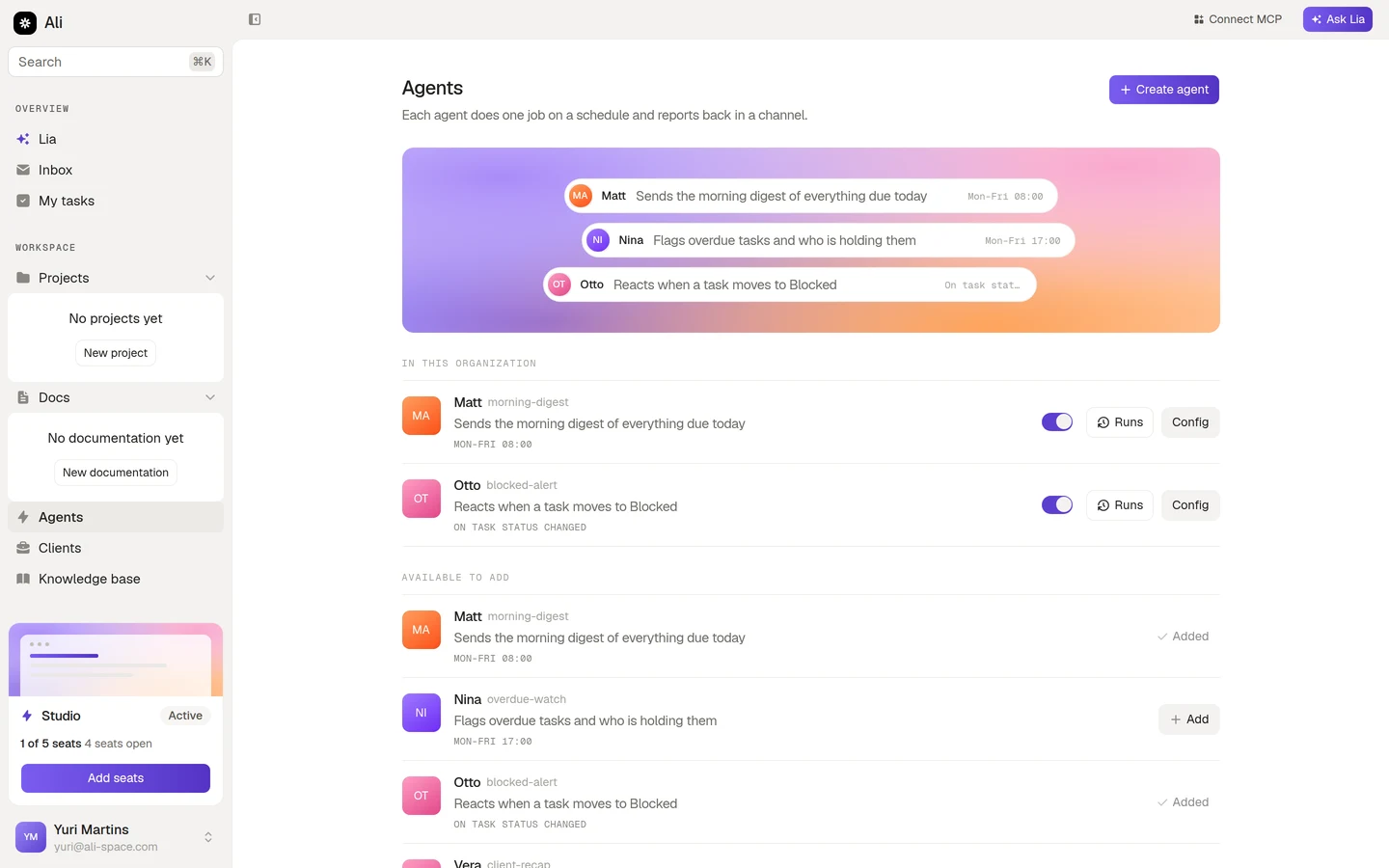
The screen has two lists. **In this organization** is what is already running for your workspace. **Available to add** is the catalogue: ready made agents you can install in one click.
## What agents are good at
The pattern that works is narrow and repetitive. One job, one schedule, one place to report:
- A morning digest of everything due today, grouped by project.
- An end of day sweep of overdue tasks, naming who is holding each one.
- A reaction when a task moves to Blocked, summarising why it is stuck.
- A Friday recap of every account and its open work, sent to the team channel.
The pattern that does not work is "keep an eye on things". An agent with a vague instruction produces a vague report, and a vague report gets ignored after a week.
## How a run works
Every agent, whether you installed it or built it, is the same four pieces.
1. **A trigger fires**
Either a schedule you set, like Monday to Friday at 08:00 in your timezone, or an event in the workspace, like a task changing status.
2. **The agent reads your workspace**
It reads through the permissions you granted it, and nothing else. An agent with read access to Tasks and Projects cannot open a customer record.
3. **It follows its instruction**
The instruction is plain language you wrote. It is the closest thing the agent has to a job description, so it is worth writing carefully.
4. **It reports back**
Into the workspace inbox, a Slack or Discord channel, or an email to people you pick.
Every run is recorded, with its status, how long it took, what it cost and what it produced. You can read the whole history at any time, and you can trigger a run by hand without waiting for the schedule.
## Who can manage them
Owners and admins can create, configure, enable, disable and delete agents. Everyone else sees the same list and can open an agent to read its details, but the switches and the save button are not there for them. That keeps the set of running agents something the workspace decides, not something that grows quietly.
## Two ways to get an agent
Pick a ready made agent, add it in one click, and adjust it to your workspace. The fastest way to see what a good agent looks like.
Write the instruction, choose the trigger, pick where it reports, and set what it may touch.
Read the history, run one by hand, and understand what a failed run is telling you.
The other side of the same workspace, for when you want to ask rather than be told.
Give an agent read access to your documents so its reports can quote them.