

Connect with an API token
The path for CLIs, CI pipelines and headless setups. Create a scoped token in Ali and paste it into an install command or a config file.
An API token is a static secret that identifies your account to the MCP server. Use it when there is no browser to run the OAuth flow: a CI pipeline, a server, a script, or any client that only knows how to send a header.
Open Connect MCP, stay on the Connect tab, and choose Terminal or config file.
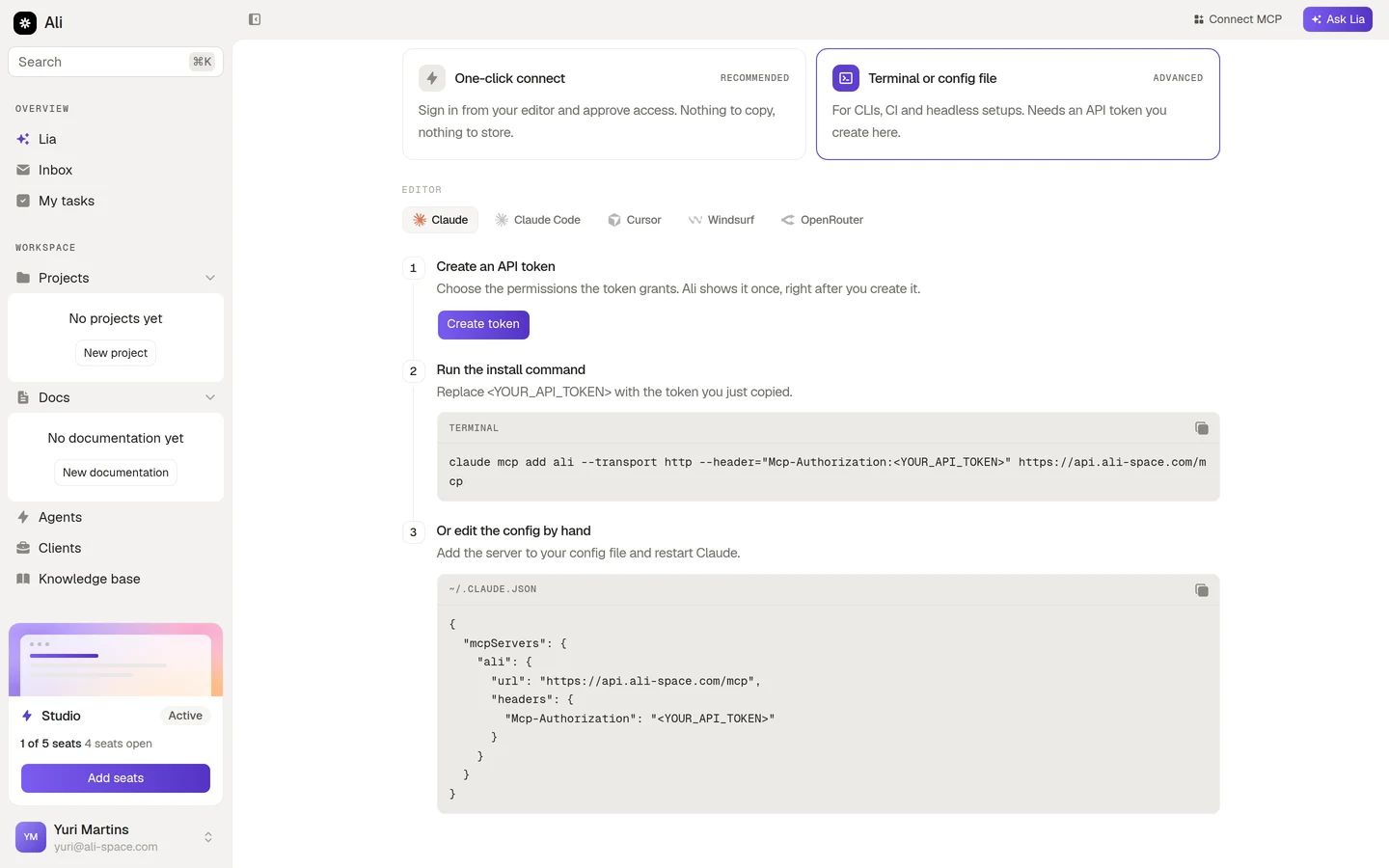
As with the OAuth flow, pick your client in the Editor row first. The install command and the config snippet below are rewritten for the client you picked, including the path of its config file.
Create the token
Press Create token in the first step. The drawer asks for three things.
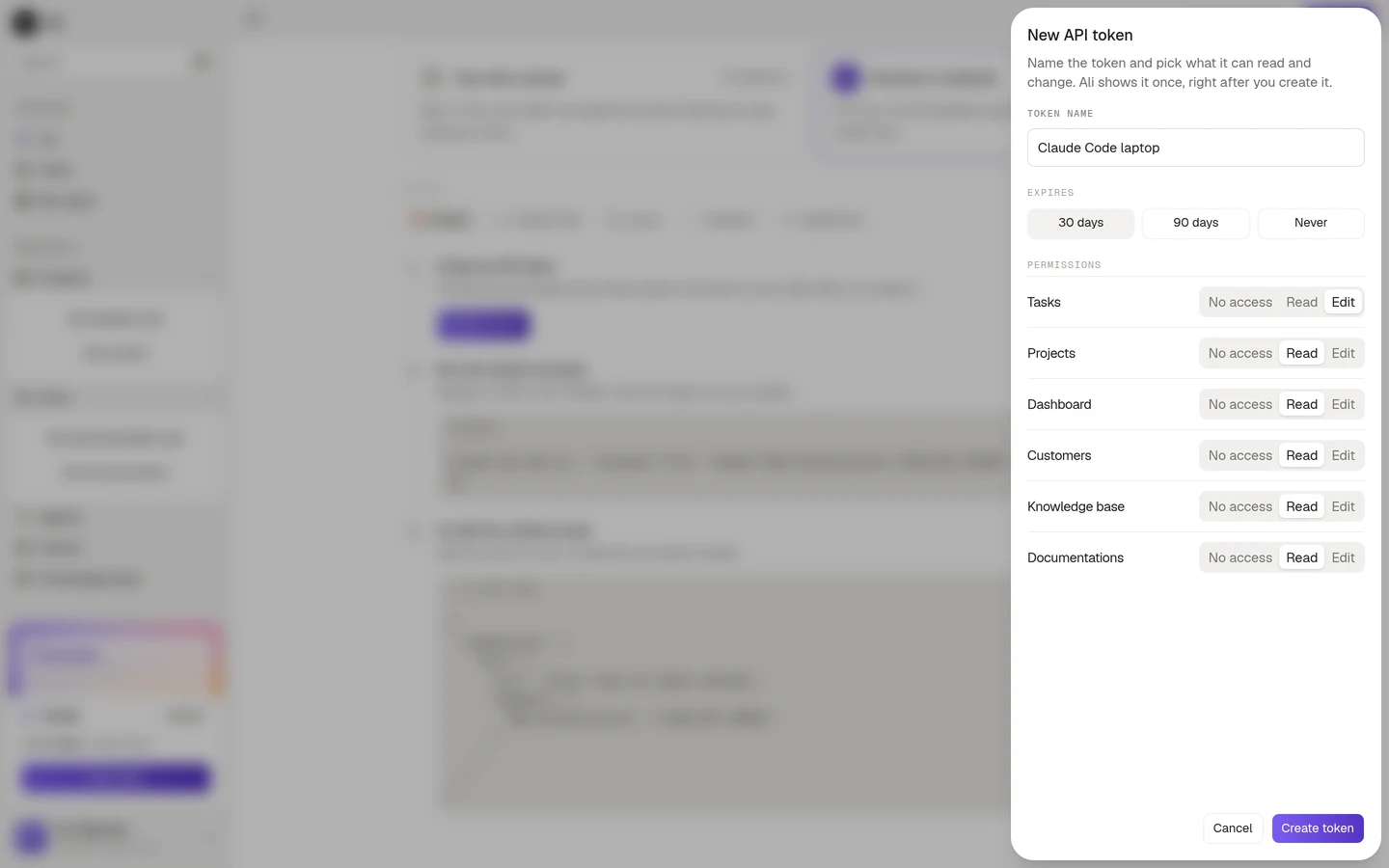
Name. Something you will recognise in six months. “CI pipeline” or “Claude Code laptop” beats “token 3”.
Expires. Thirty days, ninety days, or never. Prefer a real expiry for anything that lives on a laptop. Reserve Never for infrastructure you actually monitor.
Permissions. One row per resource, each set to No access, Read or Edit. Everything starts at Read. Turn off what the client will not need, and only lift a row to Edit when the client really has to change data. Dashboard is the one exception: it is a read surface, so it stays at read even if you set the row to Edit.
Press Create token and Ali shows it to you once.
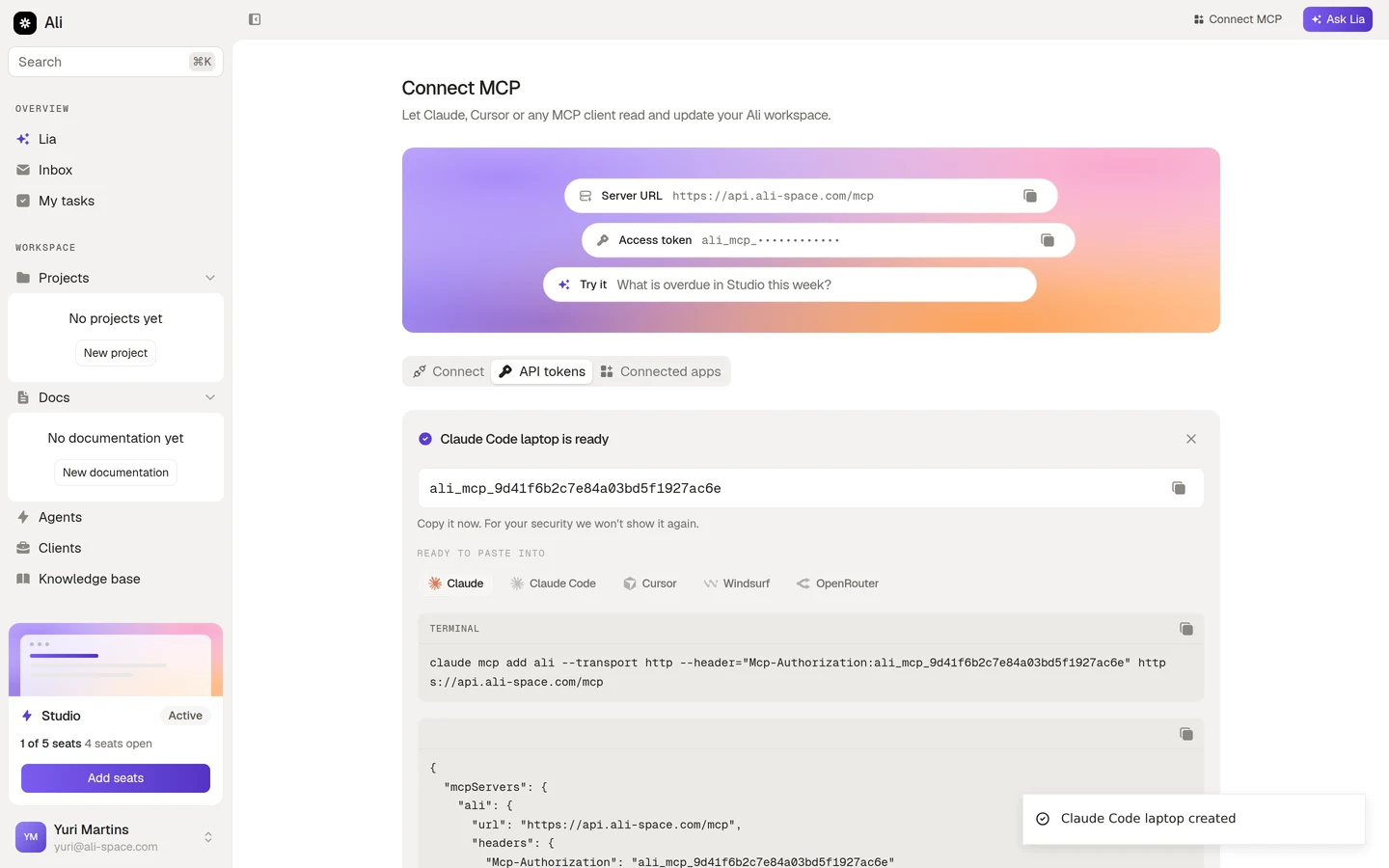
The same panel already carries the two snippets you need, with the token filled in, plus an Editor picker so you can switch between clients without going back a screen.
Install it
The first snippet is a one-line install command for the client you picked:
claude mcp add ali --transport http --header="Mcp-Authorization:<YOUR_API_TOKEN>" https://api.ali-space.com/mcpSwap claude for cursor, windsurf or openrouter if you are wiring up one of those, and replace <YOUR_API_TOKEN> with the token you just copied. The panel does that substitution for you when you copy from the token ready screen.
If you would rather edit the config by hand, the second snippet is the same thing in JSON:
{
  "mcpServers": {
    "ali": {
      "url": "https://api.ali-space.com/mcp",
      "headers": {
        "Mcp-Authorization": "<YOUR_API_TOKEN>"
      }
    }
  }
}
The file lives in a different place for each client. Ali shows the right path above the snippet:
| Client | Config file |
|---|---|
| Claude and Claude Code | ~/.claude.json |
| Cursor | ~/.cursor/mcp.json |
| Windsurf | ~/.codeium/windsurf/mcp_config.json |
| OpenRouter | ~/.openrouter/mcp.json |
Restart the client after editing the file by hand. The install command does not need a restart.
Managing tokens
Every token you created lives under the API tokens tab.
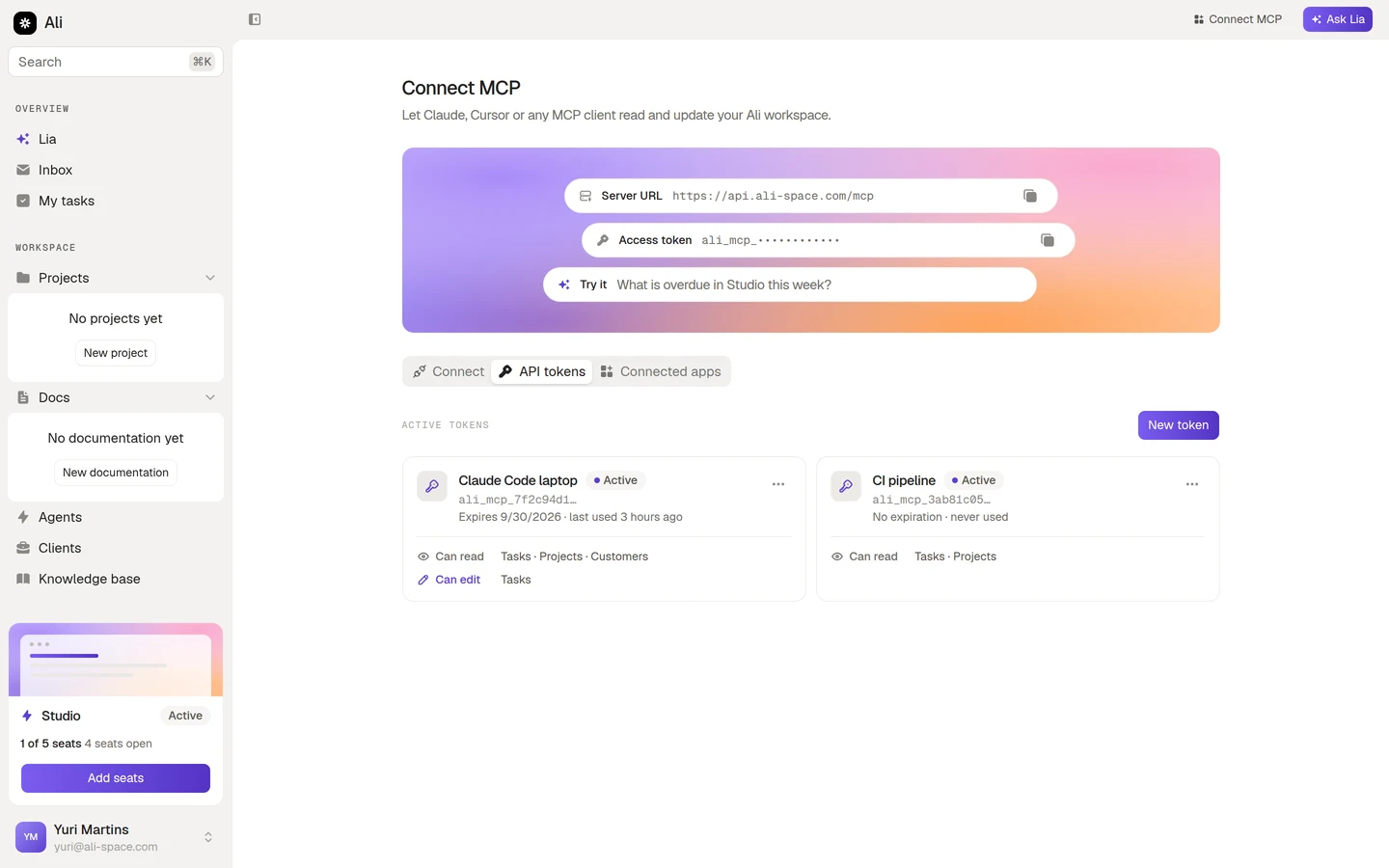
Each card shows the name, the prefix of the secret so you can tell tokens apart, when it expires, when it was last used, and the resources it can read and edit. New token at the top right opens the same drawer.
The menu on the right of a card revokes the token. A revoked token stops working straight away and stays in the list, marked as revoked, so you keep the record of what existed.
A card that says “never used” weeks after you created it is worth a second look. Either the client was never wired up, or it was wired up with a different token.