

Sending and managing documents
Formats and limits, what each status means, how to retry a file that failed, and how to find and remove a document.
Everything on this page works the same in the organization base and inside a project. The only difference is which base the file lands in.
Sending a file
Two ways in, and they do the same thing:
- Drag and drop. Drop files anywhere on the knowledge base screen. The area highlights while you are dragging.
- Add documents. The button at the top right, or Choose files when the base is still empty, opens the file picker.
You can send several files at once. Each one is uploaded and queued separately, so a slow file does not hold up the others.
Formats and limits
| Format | Extension | Typical use |
|---|---|---|
.pdf |
Contracts, statements of work, proposals | |
| Word | .docx |
Briefs, reports, internal policies |
| Excel | .xlsx |
Price lists, timesheets, rate cards |
| Markdown | .md |
Notes, playbooks, anything exported from a wiki |
| Plain text | .txt |
Transcripts, logs, quick notes |
Each file can be up to 40 MB. Anything larger, or in a format not on the list, is skipped with a message telling you so. If you send five files and two are unsupported, the other three still go through.
The document title comes from the file name with the extension stripped, so master-services-agreement.pdf becomes “Master services agreement”. Name your files the way you want them to read.
Reading the table
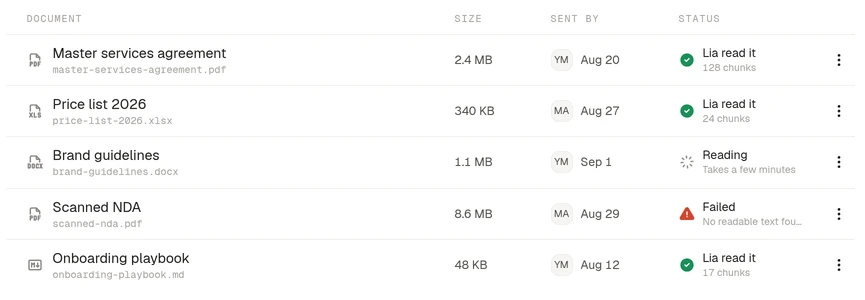
Four columns, left to right:
Document is the title, with the original file name underneath in monospace so you can tell two similar titles apart.
Size is what the file weighs. The counter above the table adds them all up, which is the quick way to see how much you are storing.
Sent by is who uploaded it and when.
Status is where the file is in its lifecycle:
| Status | What it means |
|---|---|
| Reading | The text is being extracted and indexed. Takes a few minutes |
| Lia read it | Done. The chunk count underneath is how many indexed passages it produced |
| Failed | The file could not be read. The reason is shown underneath |
The chunk count is a rough sense of how much there is to search. A 128 chunk contract carries a lot more answerable detail than a 9 chunk note.
Fixing a failed document
Open the menu at the end of the row.
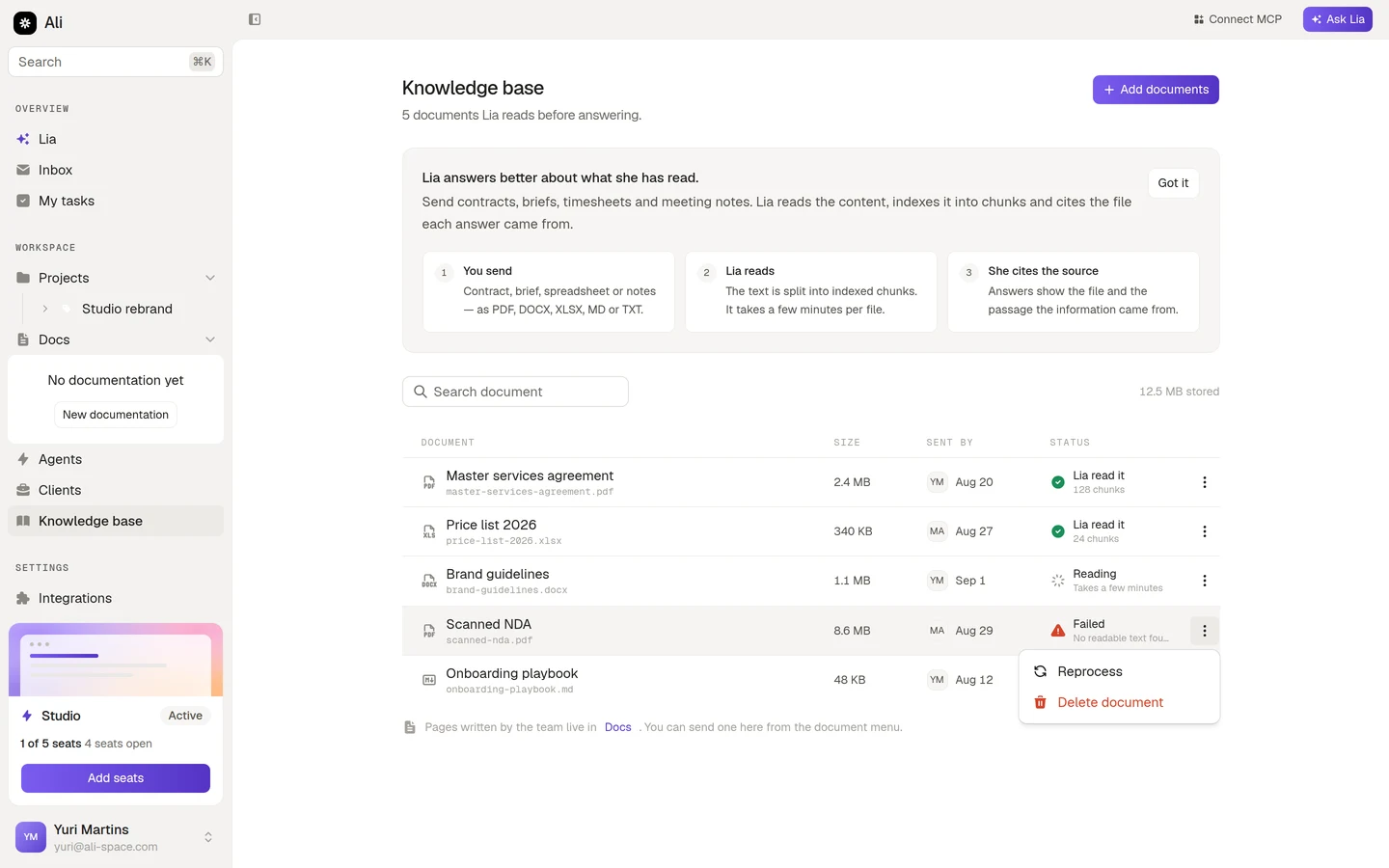
Reprocess queues the file to be read again. It only appears on documents that failed, since there is nothing to retry on one that worked.
Retry once. If it fails a second time, the problem is the file rather than the processing, and the reason on the row usually says which:
- No readable text, which means a scan or an image-only PDF. Run OCR and send it again.
- A password protected or corrupted file. Send an unlocked copy.
Finding a document
The search box above the table filters as you type, matching on both the title and the file name.
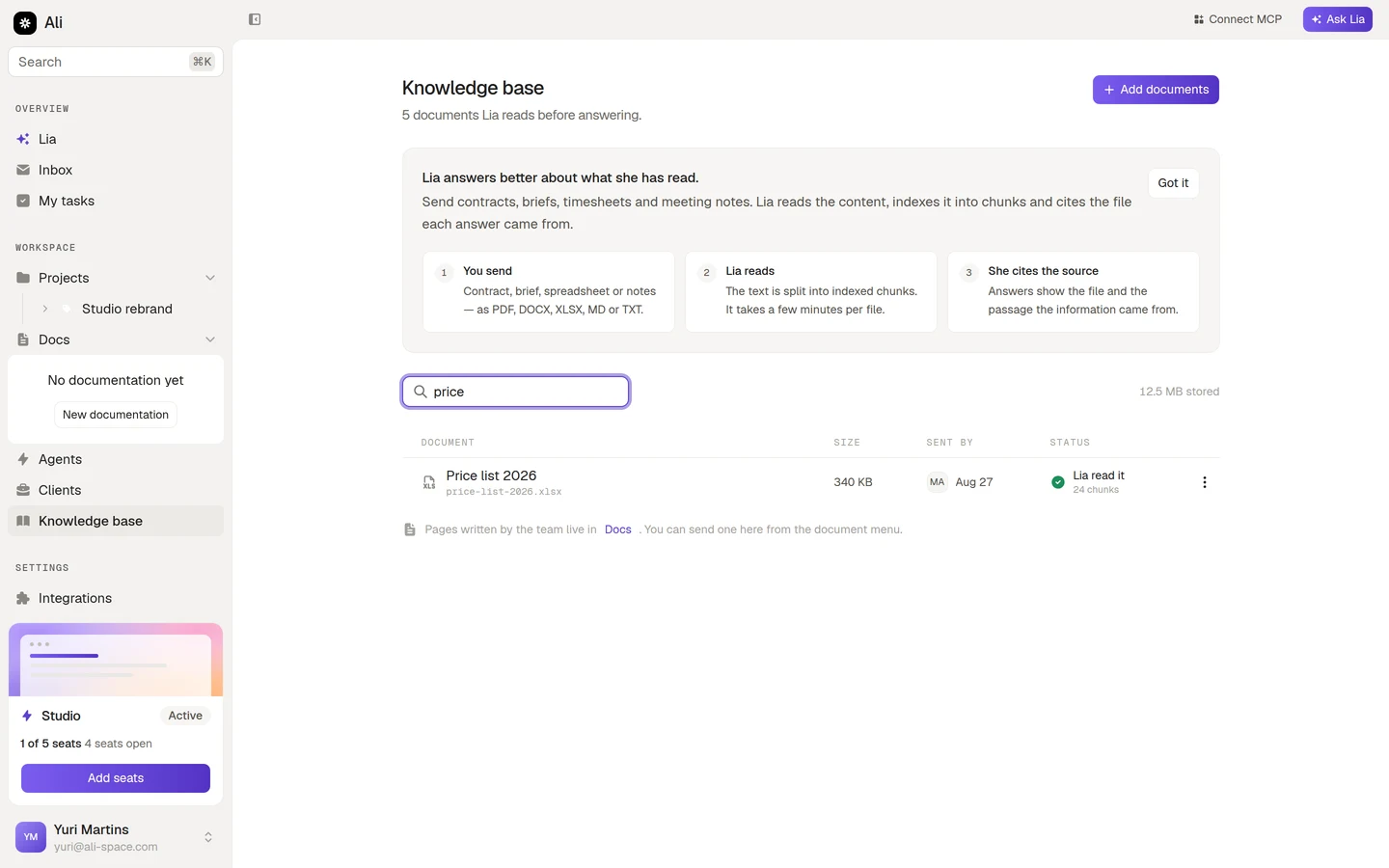
This is a filter on the list, not a search of the content. It answers “did we ever upload the price list?”. To ask what is inside the documents, ask Lia, or use search_knowledge_base from a connected MCP client.
Removing a document
Delete document in the same menu. The confirmation names the file first.
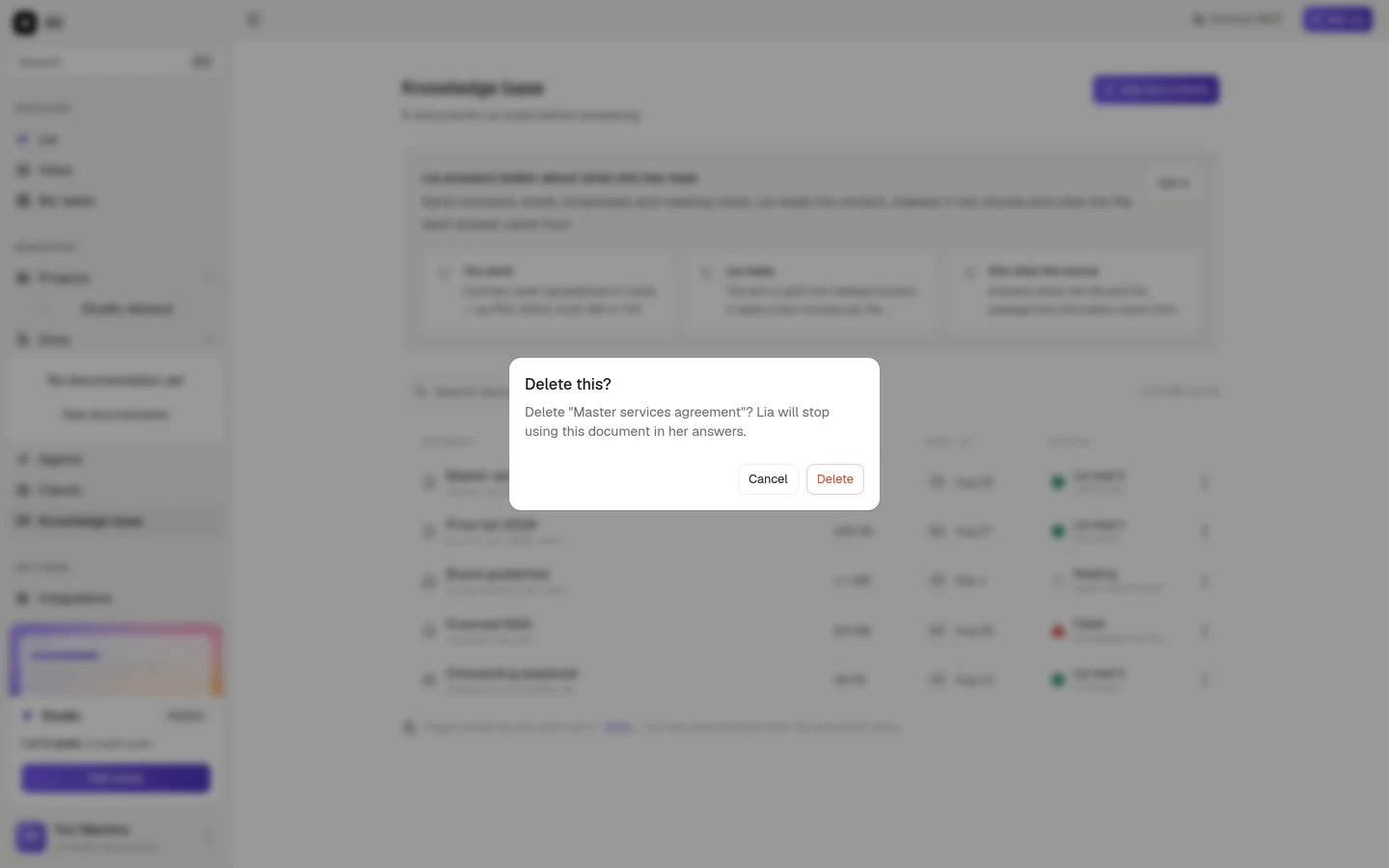
Deleting is immediate and permanent. The file and its indexed chunks go, and Lia stops using it in her answers from that moment. There is no undo, so if you are replacing a document with a newer version, send the new one first and delete the old one after.