

Create a project
The New project form, field by field: the task key, the client, the team, the two budget shapes, and what you can change later.
New project, on the projects screen, opens a single small form. Only the name is required, and everything else is a pill you open if it applies.
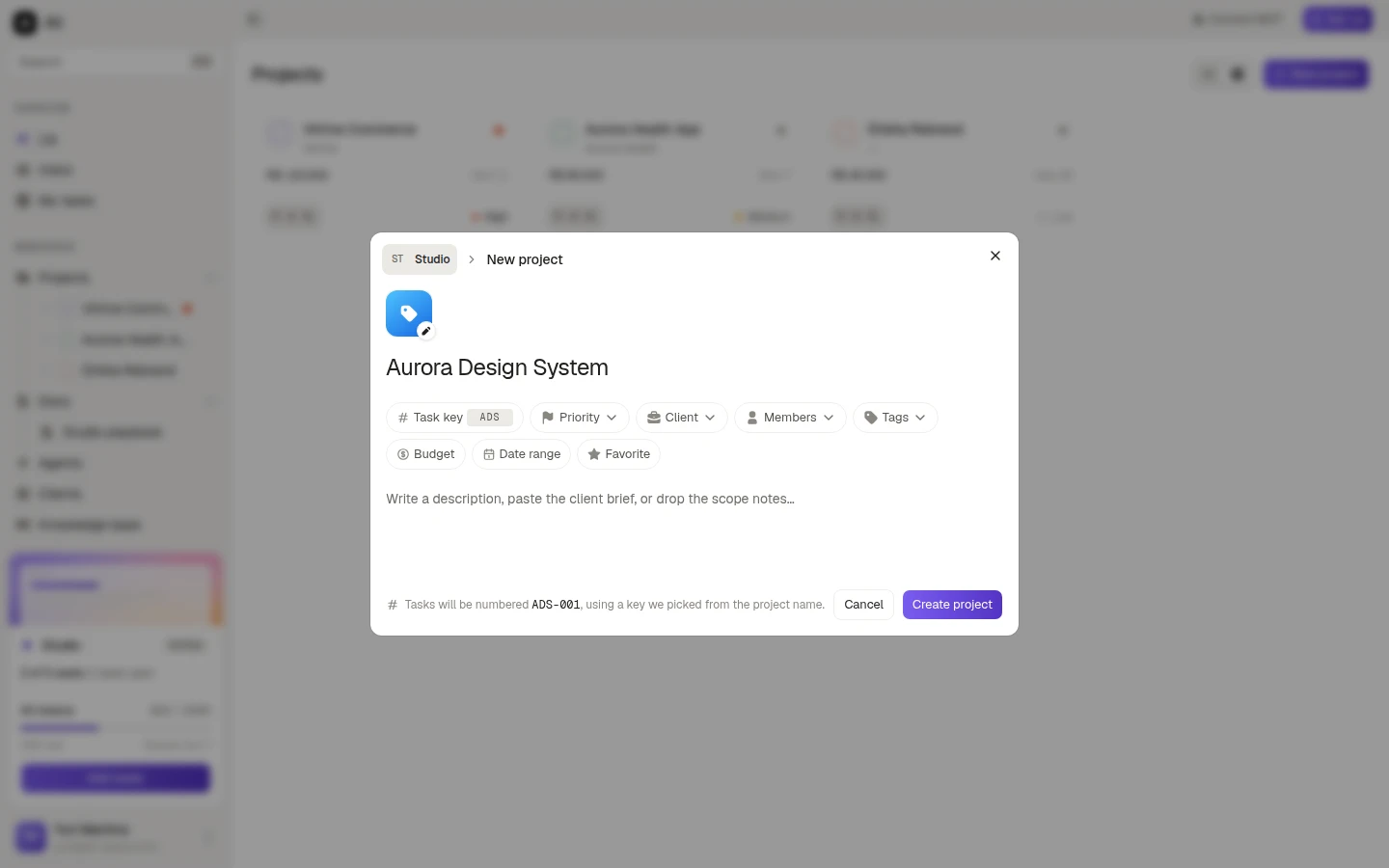
Type the name and press Create project if that is all you know today. The rest can be filled in later from Edit project.
The pills
Task key is the prefix on every task number in this project. Ali picks one from the name as you type, and the line at the bottom shows what it will look like: ADS-001. Change it here if you want something shorter, because it is the thing people will say out loud.
Priority takes No priority, Low, Medium, High or Urgent, and shows up as a dot on the project list and in the project header.
Client links the project to an account from Clients in the sidebar. Leave it empty for internal work.
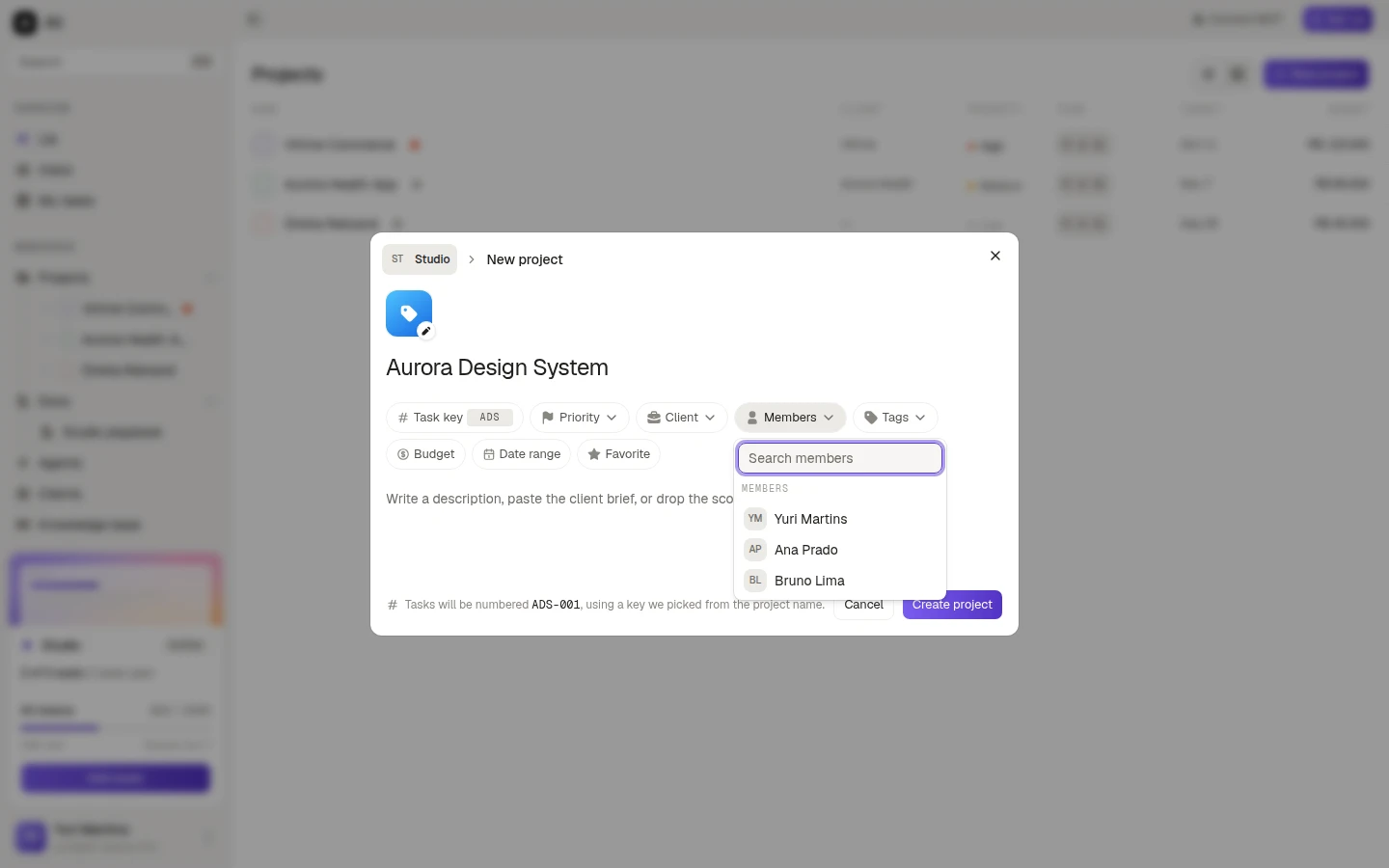
Members is the team. It lists the people in your workspace, and the ones you pick are the ones you can assign tasks to.
Tags group projects across clients, Date range sets the start and target dates, and Favorite stars it from the start.
Fixed scope or open scope
The Budget pill is where the money and the hours live, and it has two shapes.
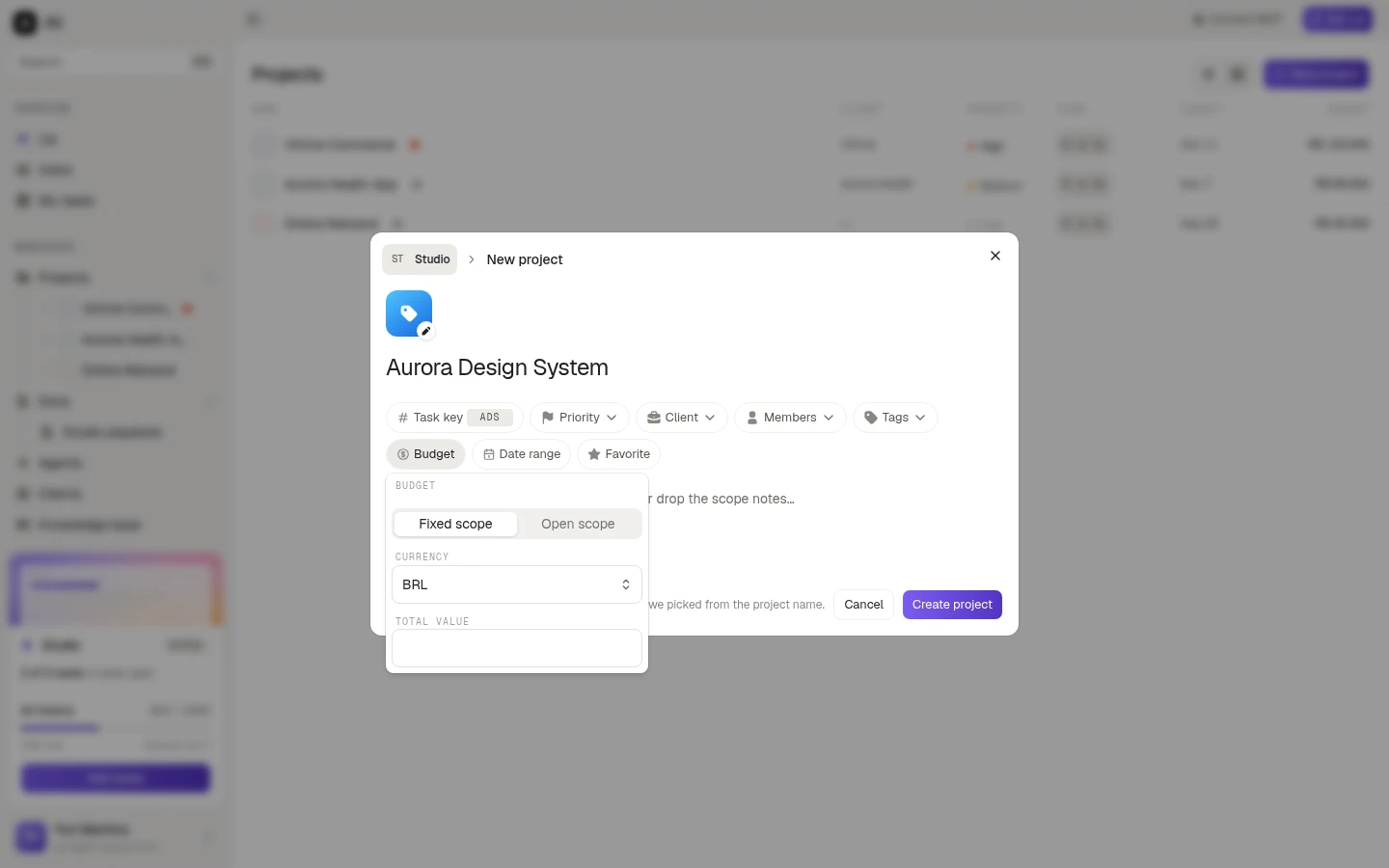
Fixed scope is a contract for a number: pick the currency and the total value. That value is what the project list shows under Budget.
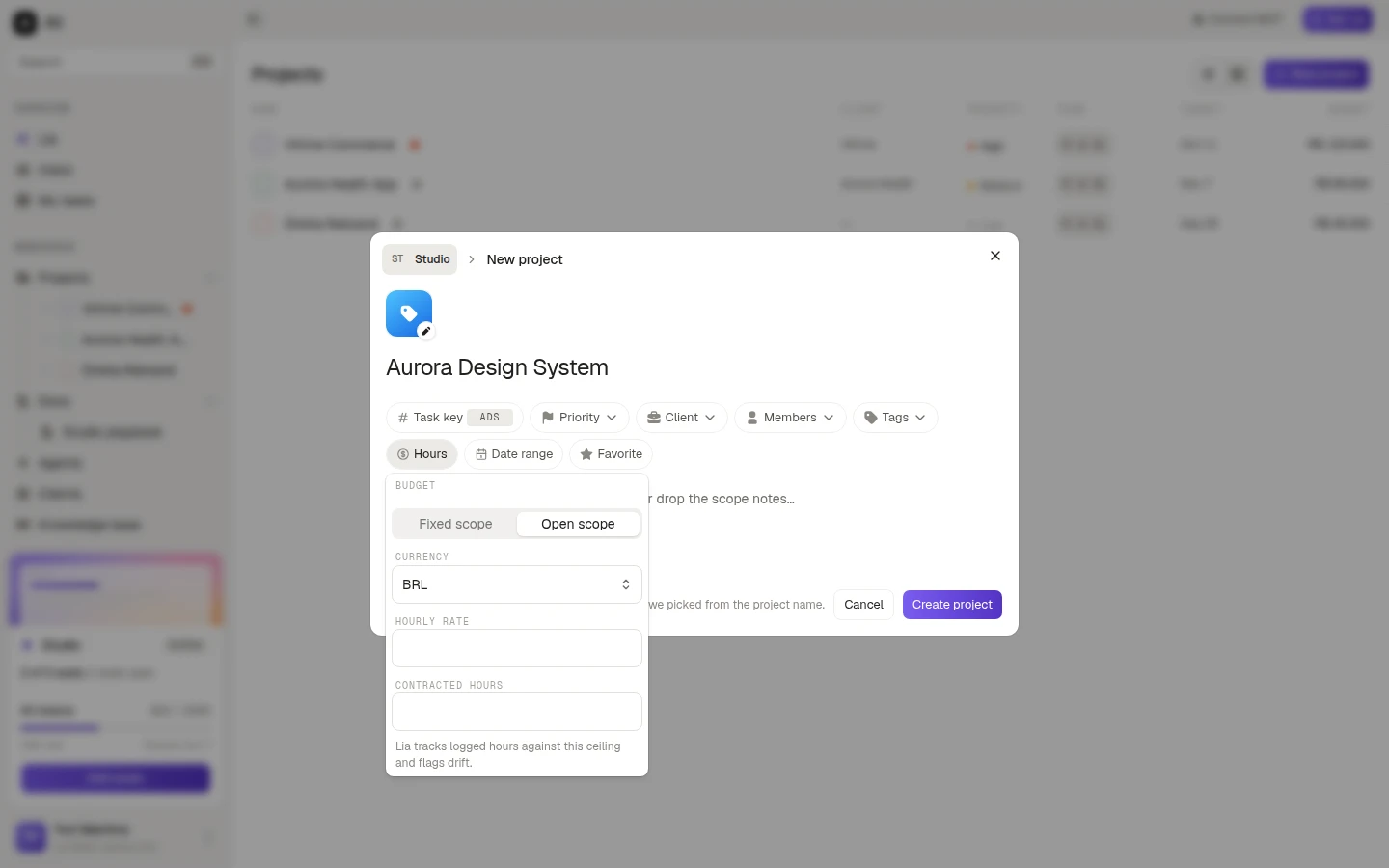
Open scope is a contract for time: an hourly rate and a ceiling of contracted hours. Lia tracks logged hours against that ceiling and flags the drift before it becomes a conversation with the client.
Pick the one that matches the contract you signed. You can switch later, but the numbers do not carry over.
The brief
The big area under the pills is the project description, and it takes more than a sentence. The placeholder says it plainly: write a description, paste the client brief, or drop the scope notes.
It is worth pasting the brief in full. It is the first thing Lia reads about the project, so what lands there shapes the answers you get later.
Editing and deleting
Open the project, then Edit project in the header menu. It is the same form, with Save changes at the end, and it is where a project changes client, priority, team, budget or dates.
Delete project is in the same menu. It asks you to confirm and cannot be undone, so it is worth being sure: a finished project that still holds its tasks, hours and documents is usually more useful than a deleted one.