

Start guide
What Ali is, what the first fifteen minutes look like, and the order to do things in so the workspace is useful on day one.
Ali keeps your clients, projects, tasks, documents and hours on a single base, and puts an assistant on top of it. That assistant is Lia. Because everything lives in one place, she can answer “what is overdue in Studio this week?” from your real work instead of from whatever somebody remembered to paste into a chat.
That is the whole idea, and it has one consequence worth knowing up front: Ali gets better the more of your work actually lands in it. The setup below is ordered around that.
The first fifteen minutes
Create your account
Sign in with Google, GitHub or a code we email you. There is no password to invent. It takes a minute, and it is covered in Create your account.
Set up the workspace
Name yourself, name the company, and pick a URL. Ali walks you through it once and never asks again. See Set up your workspace.
Invite the people you work with
A workspace with one person in it is a to-do list. Invitations go out by email and hold a seat until they are accepted.
Ask Lia something real
Not “hello”. Ask the question you would otherwise ask a person: what needs me today, which project is at risk, draft this week’s update for a client.
What you land on
After setup, Ali opens on the home screen: a greeting, a box to ask Lia something, four prompts worth stealing, and your recent conversations underneath.
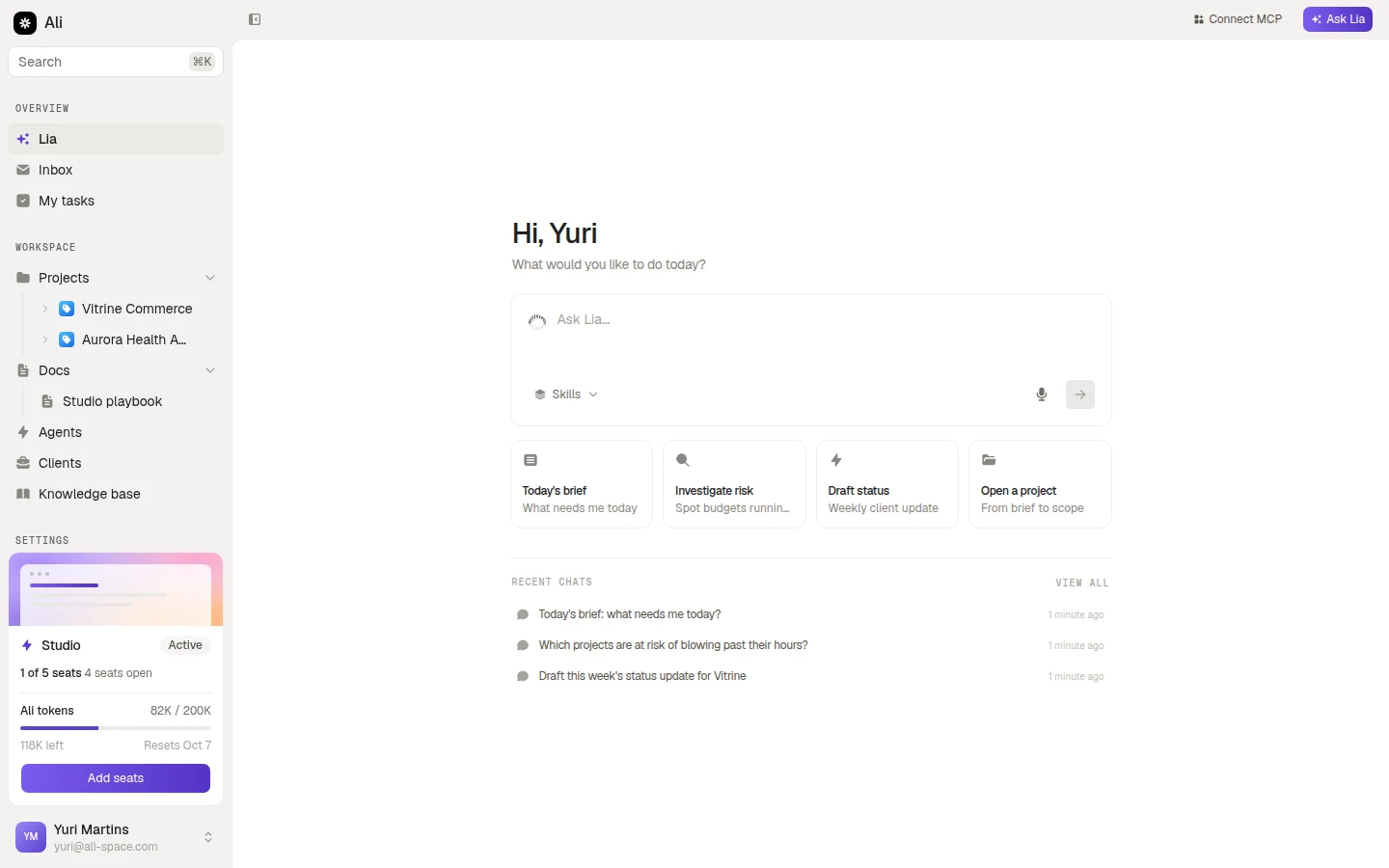
Everything else hangs off the sidebar, and Find your way around walks through it. The short version: Overview is what needs you today, Workspace is where the work lives, Settings is the plumbing.
Where to go next
Create your account
The three ways in, the six-digit code, and what to do with an invitation link.
Set up your workspace
The seven setup steps, which ones you can skip, the trial, and inviting your team.
Find your way around
The sidebar, the search palette, the account menu, and where each section leads.
Integrations
Put Lia in Slack, GitHub or Discord, and turn your meetings into documents.
Once the basics are in place, the three things that make Ali worth the setup are the knowledge base, which teaches Lia what is inside your files, the agents, which do a job on a schedule without being asked, and MCP, which lets Claude or Cursor reach the same workspace from your editor.