

Tasks
What a task carries, and the two ways to create one: a line on the board, or the full form when you already know the details.
A task is the smallest thing Ali tracks. It belongs to a project, sits in a board column, and carries everything somebody would need to pick it up: who owns it, when it is due, how long it should take, and what it actually is.
What a task carries
| Field | Values |
|---|---|
| Code | VIT-012, from the project’s task key. It is the name people say out loud |
| Type | Story, Task or Bug |
| Status | The workspace statuses, which is what puts the task in a column |
| Priority | Urgent, High, Medium, Low or No priority |
| Assignee | One member of the project, or Unassigned |
| Start and due dates | What the timeline and the calendar draw from |
| Estimate | Hours the task should take |
| Time spent | Hours actually logged against it |
| Tags | Free labels, shared across the project |
| Subtasks | Tasks inside the task, with their own owners |
Adding one in a line
Every column ends with Add task, and a column header has a +. Both open the same inline composer.
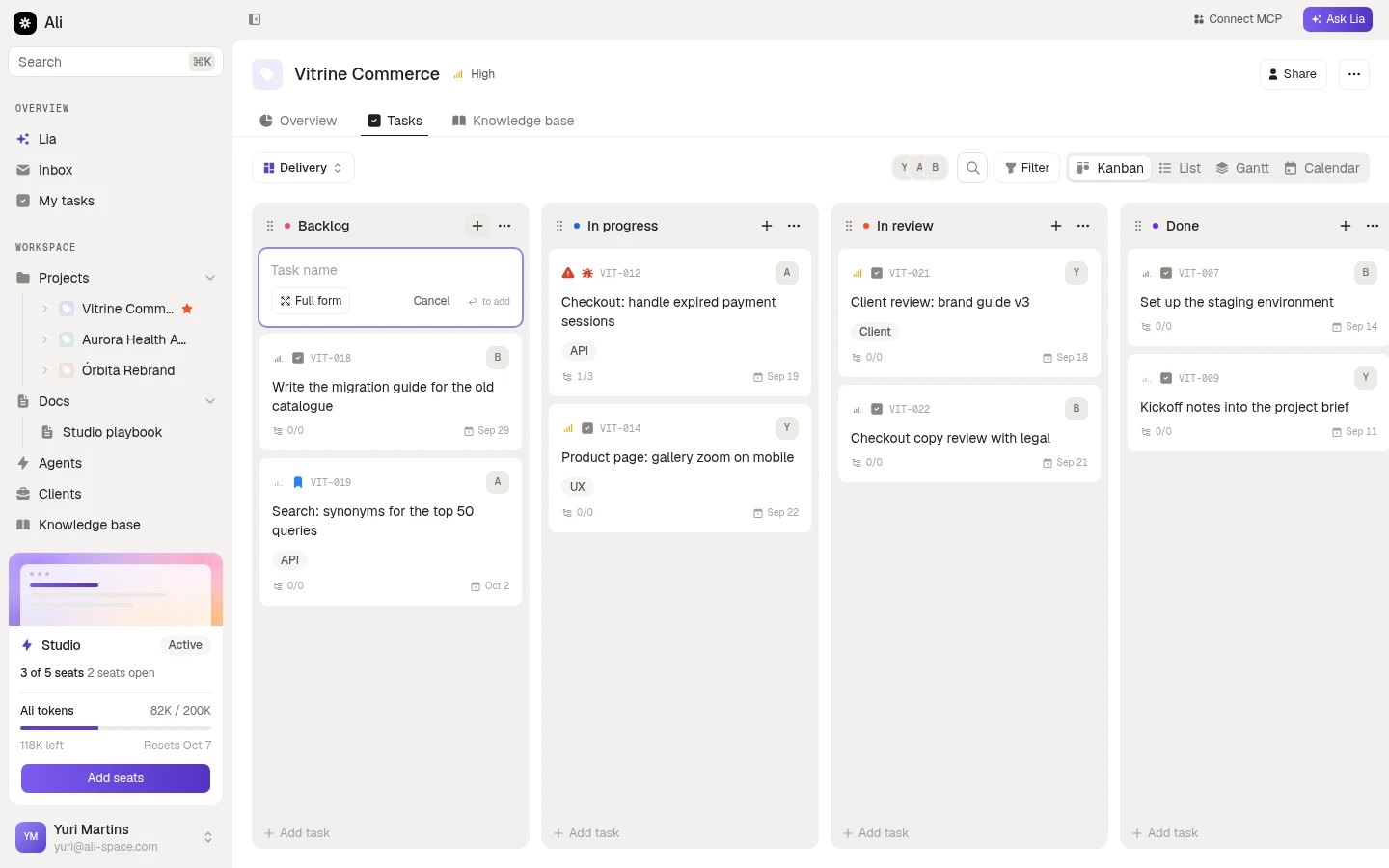
Type the name and press Enter. The task lands in that column with the column’s status, and the composer stays open for the next one, which is the point: a planning session is twenty tasks typed in a row, not twenty dialogs.
The full form
When the details already exist in your head, Full form on the composer opens the whole thing.
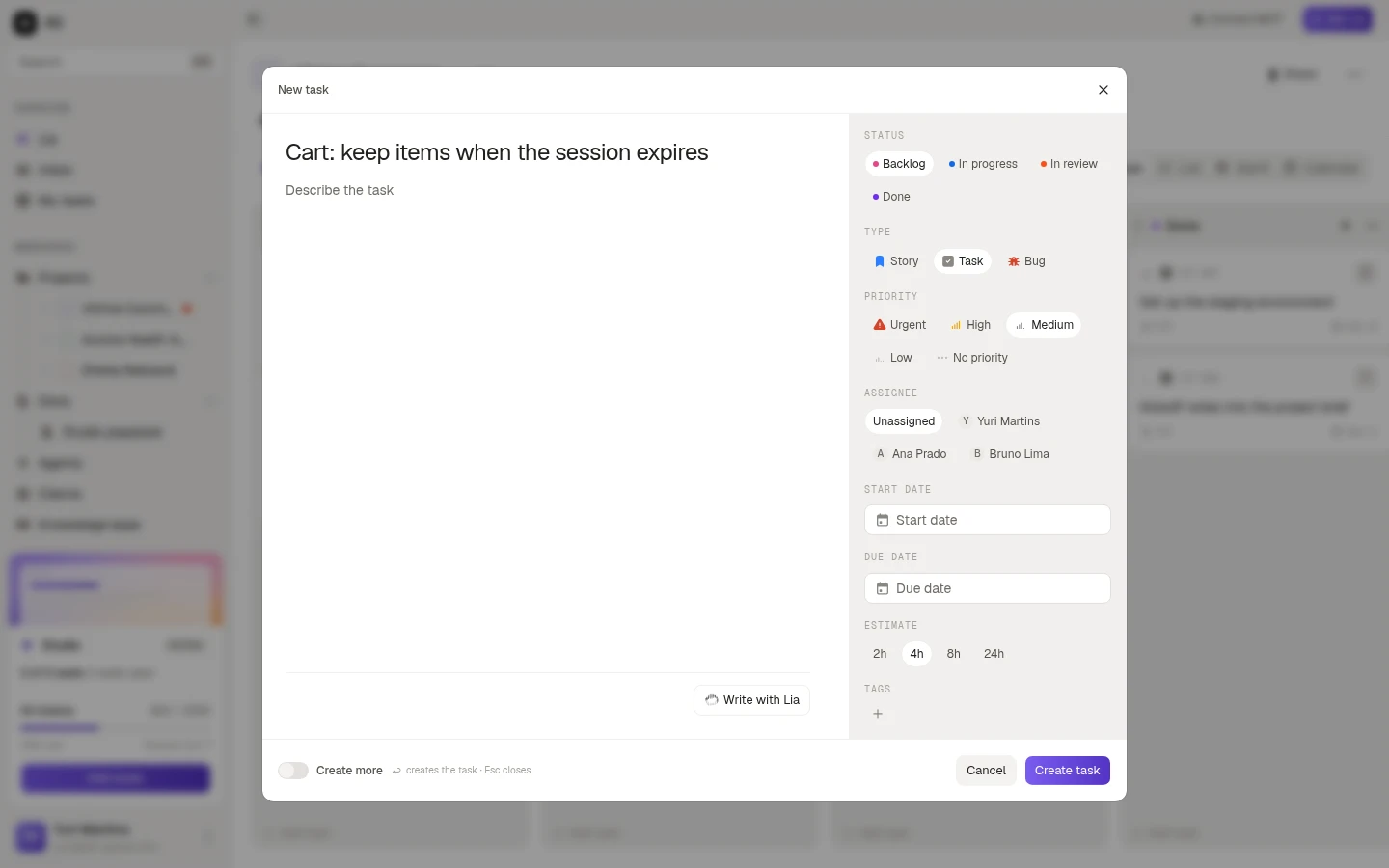
Everything on the right is one click: status, type, priority, assignee, start and due dates, an estimate from the presets, and tags. Write with Lia drafts the description from the title when you would rather not.
Two things at the bottom are worth knowing:
- Create more keeps the dialog open after each task, cleared and ready for the next one.
- Enter creates the task, Esc closes the dialog.
Moving work along
On the board, drag a card into another column and the status follows it. On any view, opening a task gives you the panel, where every property is editable.
Right-clicking a card is the shortcut for the things you do most: move it to another column, assign it to somebody, change its type, or add a tag, without opening it.