

Create your own agent
Build an agent from scratch. Name it, write the instruction, pick a schedule or an event, choose where it reports, and set what it may touch.
When no catalogue entry matches the job you have in mind, build your own. It takes about two minutes, and the form walks you through the same four sections a catalogue agent uses.
Press Create agent at the top right of the Agents screen.
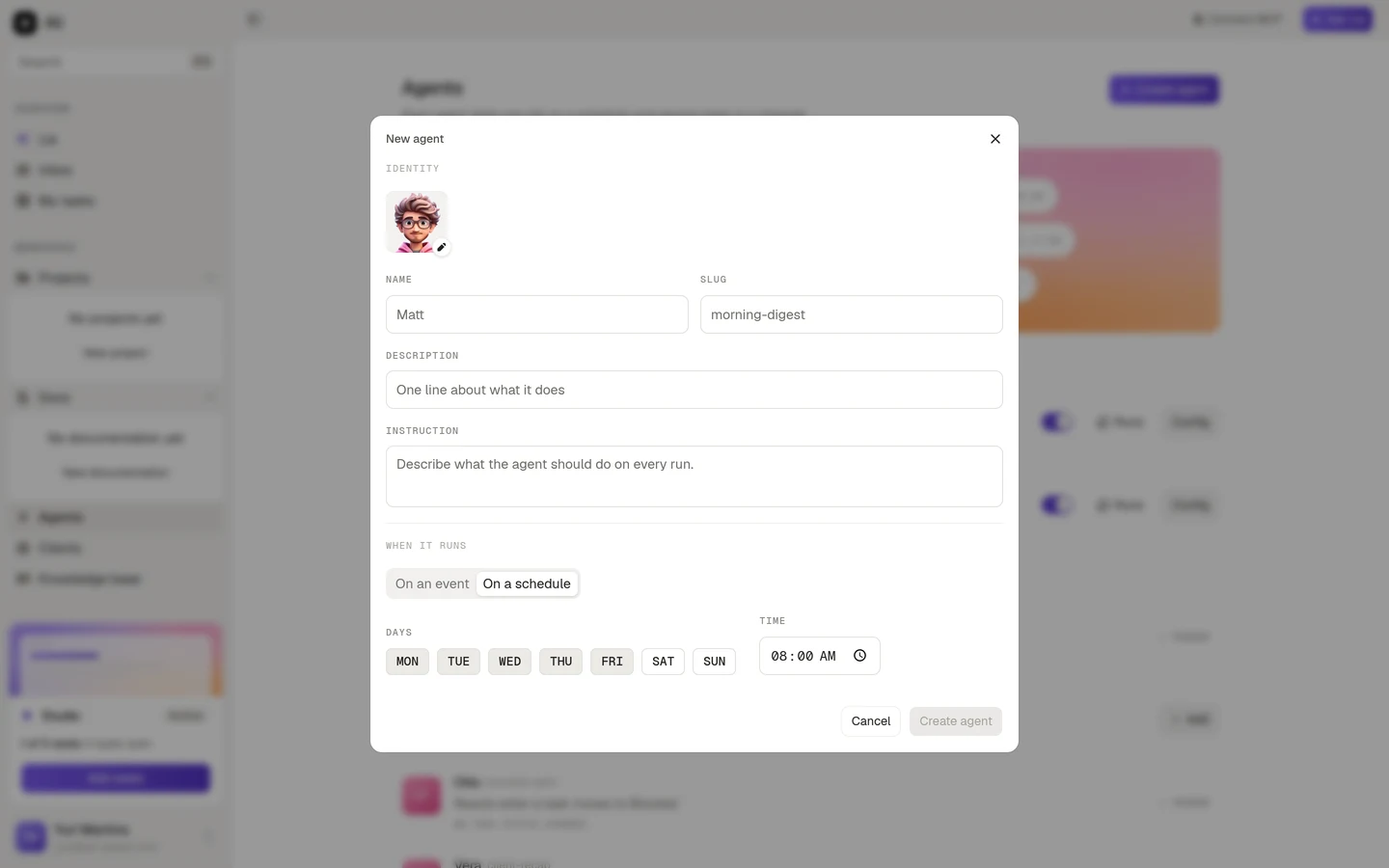
Identity
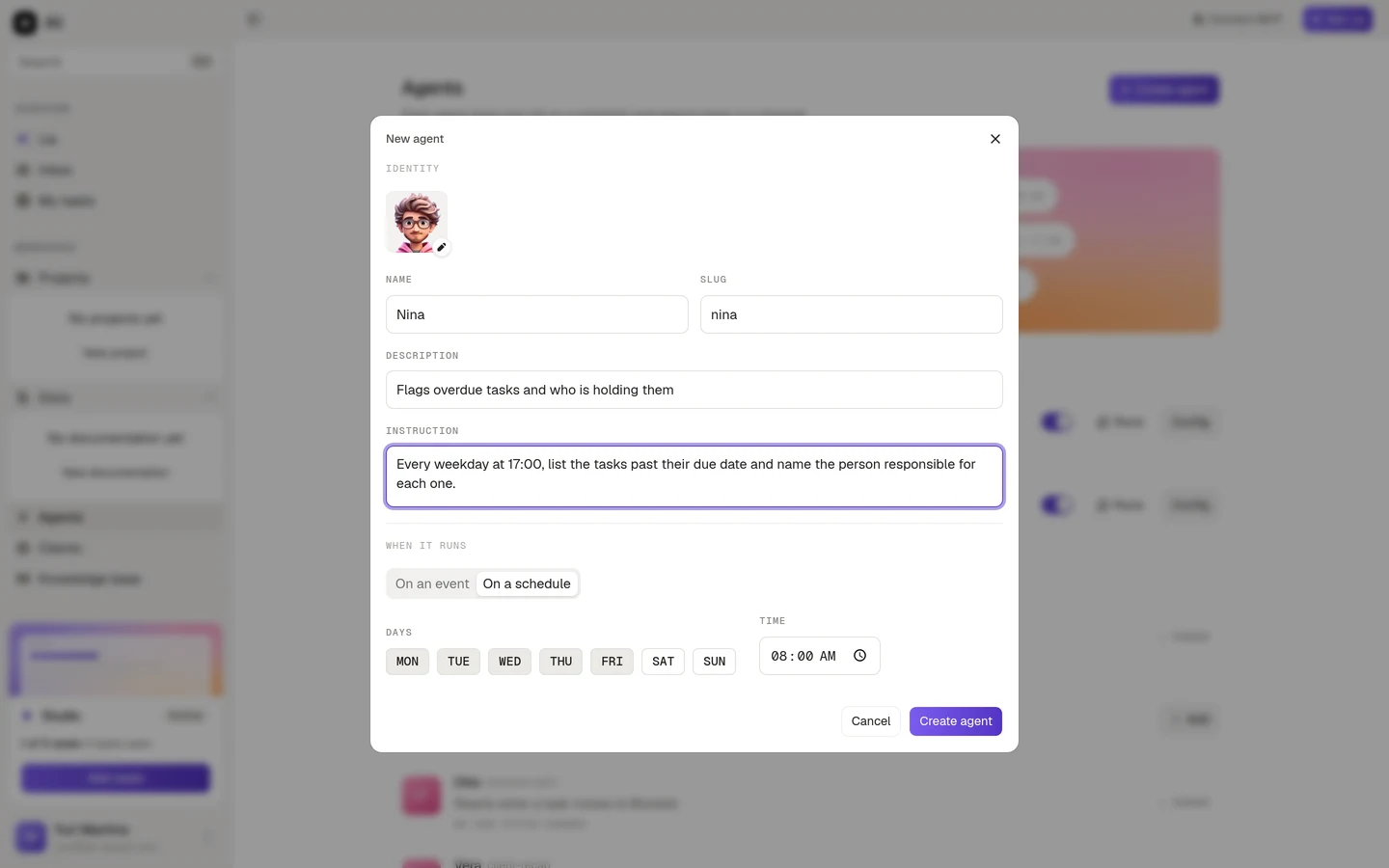
Name is what people will see on the report. Give it a person’s name if that helps: “Nina says three tasks are overdue” reads better than “overdue-watch-2 says three tasks are overdue”.
Slug fills itself in from the name and is what runs and reports use to refer back to the agent. You can edit it while you are creating the agent. Once the agent exists, it is locked.
Description is the one line that shows in the list. Write it for whoever opens the Agents screen in three months and wonders what this thing does.
Avatar is a picker of ready made faces, or an image you upload.
Instruction is the important one, and it is worth slowing down for.
Writing a good instruction
The instruction is plain language, and it is the agent’s whole job description. Two rules cover most of it: say what to look at, and say what the output should look like.
A weak instruction:
Check the overdue tasks.A good one:
Every weekday at 17:00, list the tasks past their due date and name the
person responsible for each one. Group them by project, put the oldest
first, and skip anything already marked as done. If nothing is overdue,
say so in one line instead of sending an empty list.
The second one tells the agent what to look at, how to order it, what to leave out, and what to do when there is nothing to report. That last part matters more than it looks: an agent that sends an empty report every day is an agent people learn to ignore.
When it runs
Two kinds of trigger, and the choice changes the rest of the section.
Pick the days of the week and a time, then confirm the timezone. It defaults to your browser’s timezone, which is almost always what you want. The line next to it tells you how many runs per week that adds up to, so you can see the cost of a wide schedule before you commit to it.
The agent reacts to something happening in the workspace instead of waiting for a clock. Pick the event, then narrow it down.
The events available are task created, task updated, task assigned, task status changed, and project created.
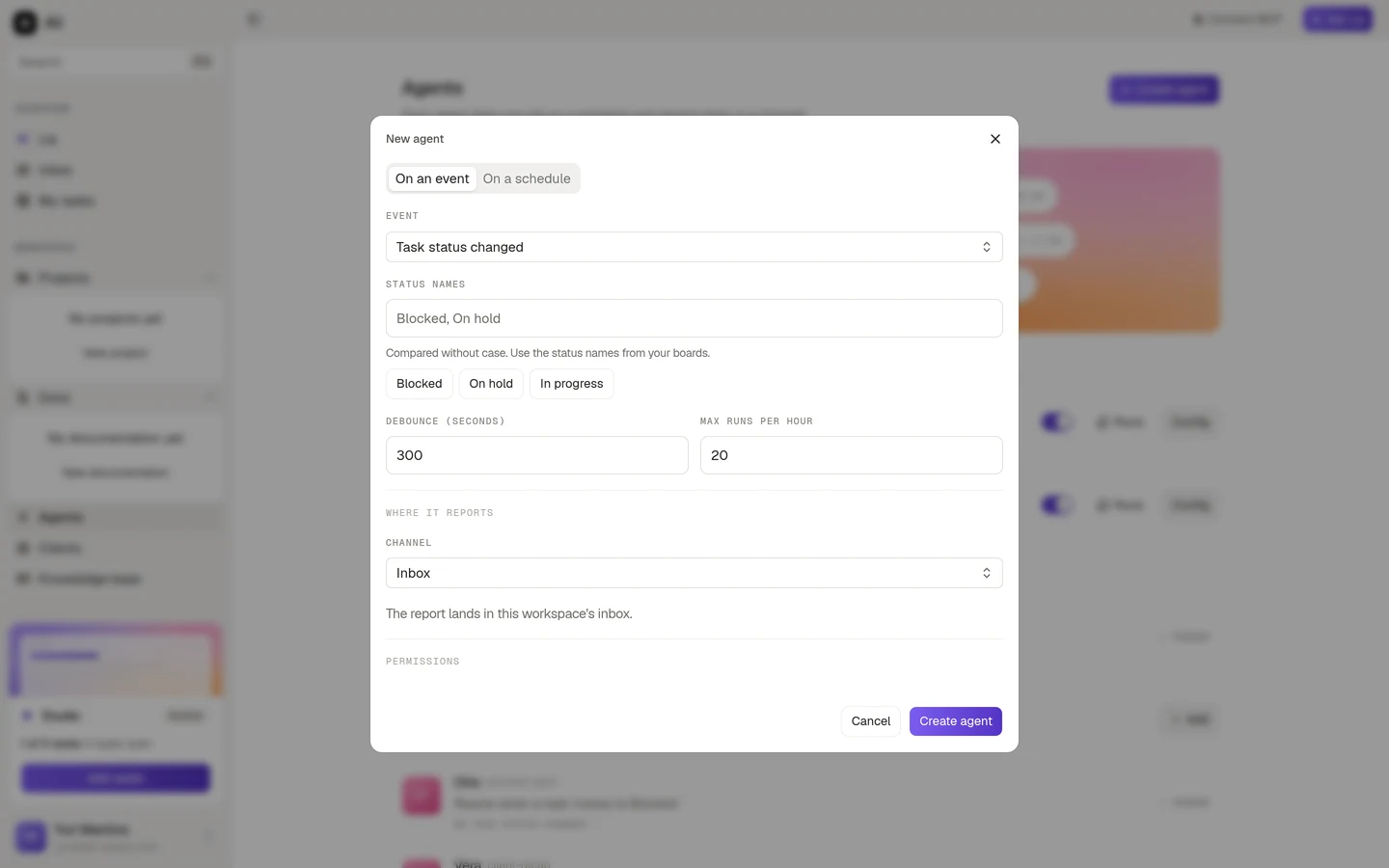
Task status changed takes an extra filter: Status names. Type the statuses you care about, separated by commas, or press the suggestions underneath, which are the statuses actually used in your organization. Names are compared without case. Leave it empty and the agent reacts to every status change, which is rarely what you want.
Two fields keep an event agent from running away with itself:
Debounce is how long the agent waits before reacting, in seconds. It defaults to 300, so five minutes. Somebody dragging a task across three columns in a row produces one run, not three.
Max runs per hour is a hard ceiling. It defaults to 20. A busy Monday morning cannot turn into a hundred runs.
Where it reports
Same four choices as a catalogue agent:
- Inbox puts the report in the workspace inbox. Nothing to configure.
- Slack and Discord ask for a channel, and only list channels from an integration that is already connected. If it is not, the field tells you and points at Integrations.
- Email sends to members you pick. Leave it empty and it goes to the member the agent runs as.
What it may touch
A new agent starts read only, on every resource. The Let this agent change data switch is what unlocks the Write column, and Full access grants write on everything at once. Dashboard and Knowledge base stay read only either way.
Grant the narrowest set that lets the agent do its job. An agent that reports on overdue tasks needs Tasks and Projects at read. It has no business reading your customers.
Creating it
The Create agent button turns on once the form has what it needs: a name, a slug, an instruction of at least a few words, a trigger with days and a time if it is scheduled, and a channel if it reports to Slack or Discord.
The agent starts enabled and runs on its next trigger. If you would rather see it work before you wait for the schedule, open Runs and press Run now.