

MCP
Connect Claude, Cursor or any MCP client to your Ali workspace so it can read your clients, projects, tasks and documents, and act on them.
MCP, short for Model Context Protocol, is the standard that lets an AI client talk to an external system. Ali AI runs an MCP server for your workspace, so any client that speaks the protocol can look at your clients, projects, tasks and documents, and change them when you allow it.
In practice this means you stop copying context into a chat. You open Claude, ask “what is overdue in Studio this week?”, and the answer comes from your real workspace. You ask it to move a task, and the task moves.
Everything starts on the Connect MCP screen, which you reach from the top bar of the app.
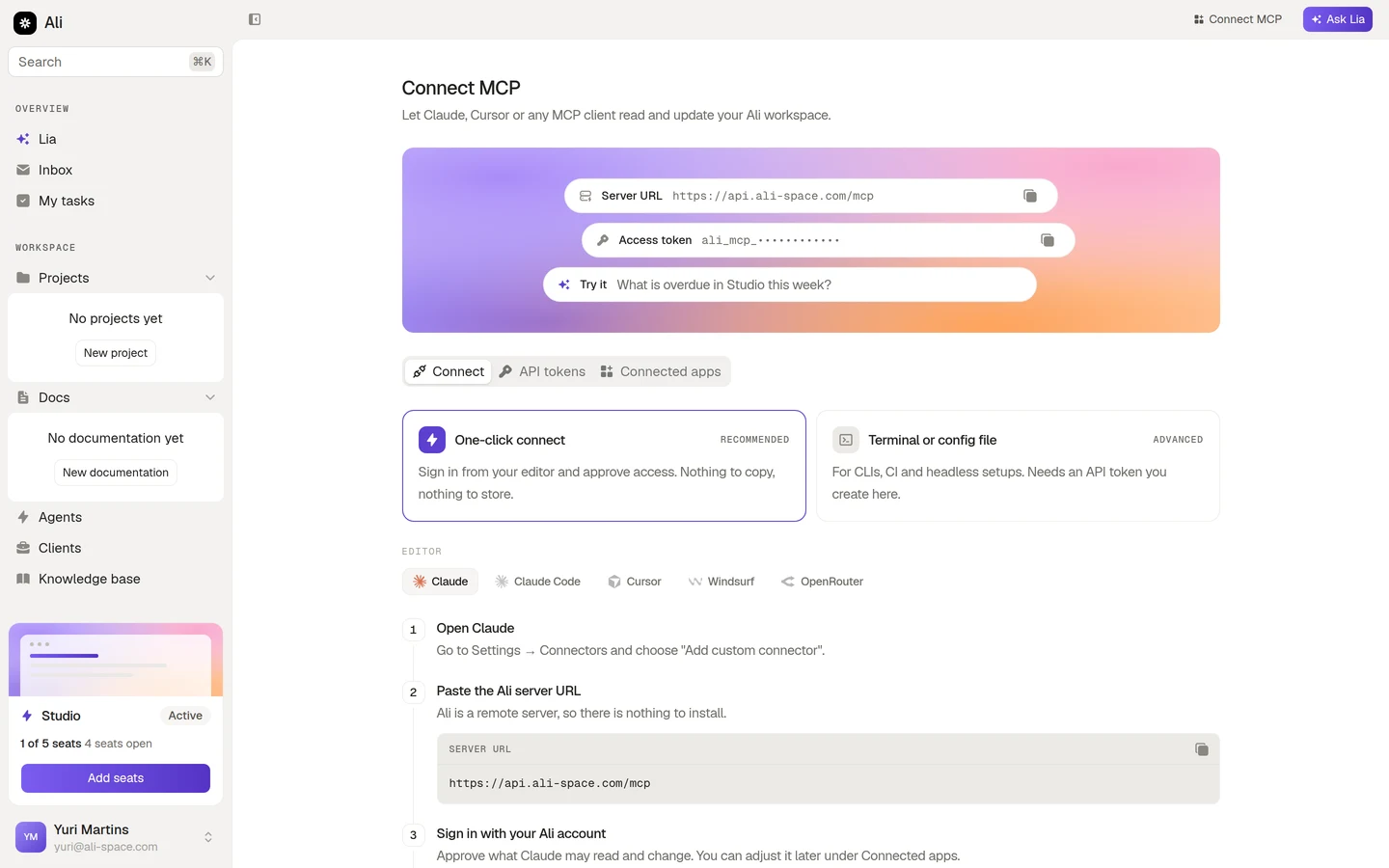
The panel at the top always carries the two values you need: the server URL of your workspace, and a masked preview of your access token. Copy either one with the button on the right of each row.
Two ways to connect
There is no single right answer here. Pick the one that matches where the client runs.
One-click connect
Sign in from your editor and approve access. Nothing to copy, nothing to store. This is the recommended path for Claude, Cursor, Windsurf and anything else with a connector panel.
Terminal or config file
For CLIs, CI pipelines and headless setups. You create an API token in Ali and paste it into a command or a config file.
The difference is where the credential lives. With one-click connect, Ali and your client exchange it for you and you never see a token. With an API token, you hold the secret and you decide where it is stored, which is exactly what a build server needs.
What a connected client can do
The server exposes your workspace grouped by resource, and every group has read tools and write tools:
| Resource | What the client can reach |
|---|---|
| Tasks | List, search, open, create, update, archive and delete tasks, plus boards and statuses |
| Projects | List, open, create, update and delete projects, and read their members |
| Customers | List and open accounts, read and write notes, update status |
| Documentations | List, open, create, update and delete documents and their pages |
| Knowledge base | Search the knowledge base and list what is in it |
| Dashboard | Read the workspace overview, your tasks and what is overdue. Read only |
A client only sees the groups you granted. If a token carries no access to Customers, the customer tools are simply not there for that client.
Who can connect
Any member of the workspace can connect a client to their own account. The client acts as that member, so it sees what the member sees and nothing more. Connections and tokens are listed per workspace, so an admin can look at the API tokens and Connected apps tabs at any time and revoke what should not be there.
Where to go next
Connect with OAuth
The four step flow, the consent screen, and how to manage a connection later.
Connect with an API token
Create a token, scope it, and paste it into your CLI or config file.
Permissions
How read and edit access works, and how to keep a connection tight.
Agents
The same workspace, but running on a schedule without you asking.