

My tasks
Everything assigned to you across every project, grouped the way you think about it, with enough detail to work without opening the project.
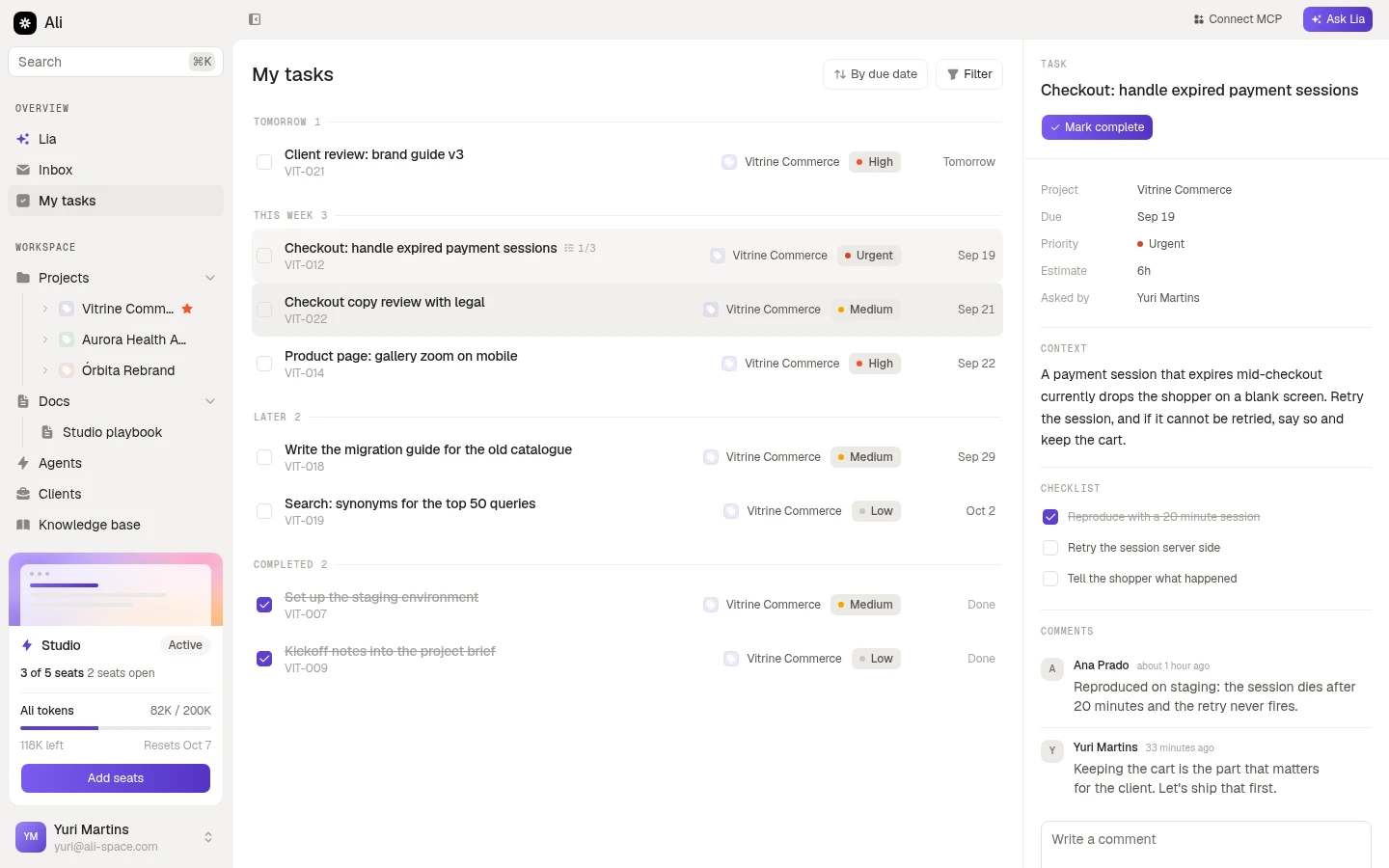
My tasks, at the top of the sidebar, is the one screen that ignores projects. It collects every task assigned to you, wherever it lives, and puts the detail of the selected one on the right.
The groups
By default the list groups by date: Overdue, Today, Tomorrow, This week, Later, and Completed at the bottom. That order is the point. If something sits under Overdue, it is the first thing you see when you open Ali.
The control at the top right regroups the same tasks:
- By due date is the default above.
- By project groups by the project each task belongs to, for the day you want to clear one client before touching another.
- By priority groups by Urgent down to No priority, for when the date is not what is pressing.
Filter is the same filter as the board: priority, type, due date and tags.
Checking things off
The checkbox on a row completes the task. The row moves to Completed, keeps its strikethrough, and the same checkbox reopens it if you were too quick.
The detail pane
Selecting a row fills the right side without leaving the screen: the project, due date, priority, estimate, and who asked for it, then the description under Context, the subtasks as a Checklist, and the comments underneath with a box to add one.
Mark complete at the top does the same as the checkbox, and turns into Reopen task on something already done.
It is deliberately less than the full task panel: enough to work, comment and close, without the board around it.