

Connect with OAuth
The one-click path. Sign in from your editor, approve what the client may read and change, and start asking questions about your workspace.
One-click connect is the path we recommend for anything with a connector panel: Claude, Claude Code, Cursor, Windsurf, OpenRouter. You paste a URL once, sign in with your Ali account, and approve what the client may touch. No token is copied, and nothing sensitive ends up in a config file on your machine.
Open Connect MCP from the top bar, stay on the Connect tab, and keep One-click connect selected.
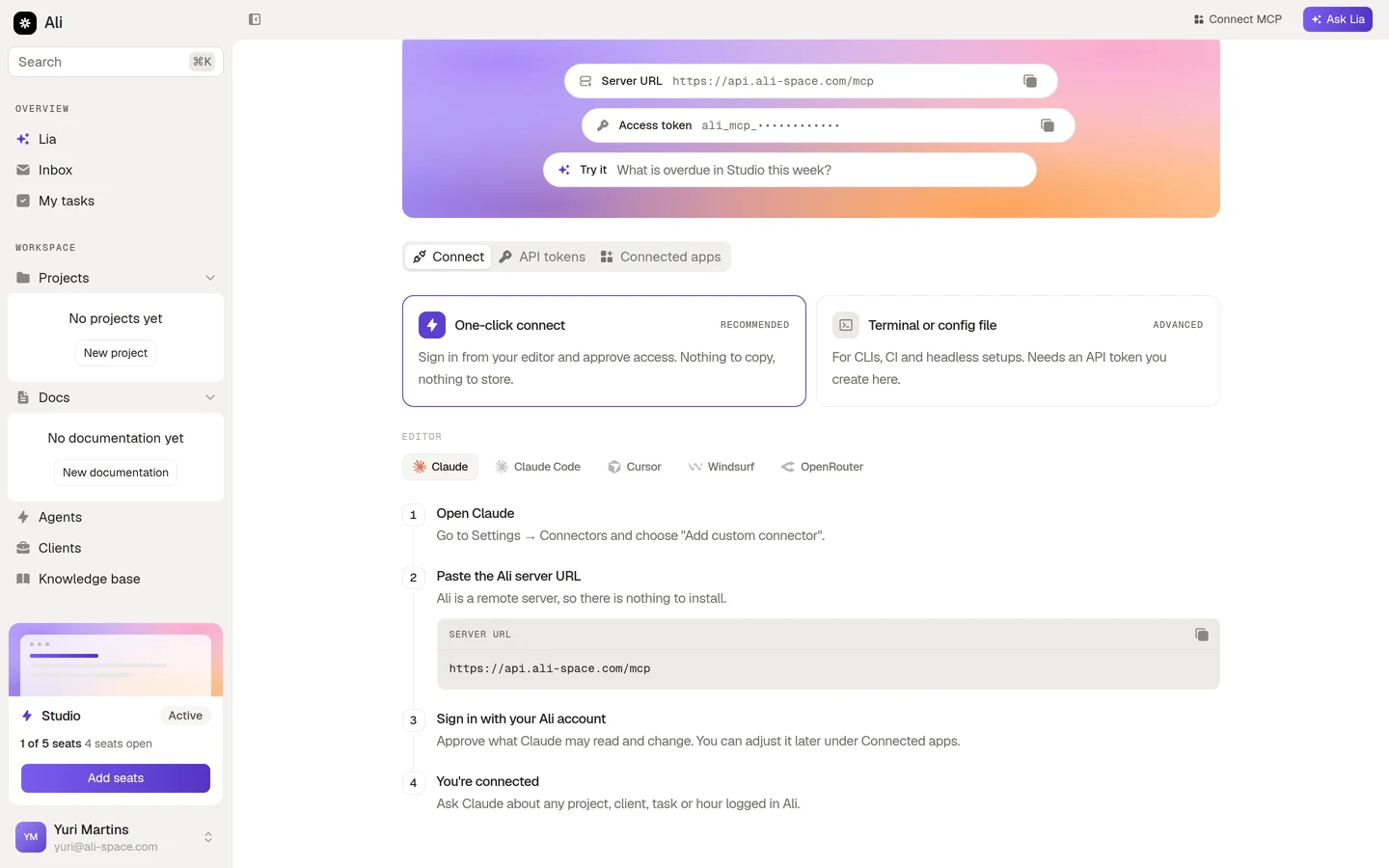
Right under the two method cards there is an Editor row. Pick your client there first, because the steps below rewrite themselves for it. Claude tells you to go to Settings, Connectors. Claude Code points you at the /mcp command. Cursor points at Settings, Tools and MCP. Windsurf points at Settings, Plugins.
The flow
Open your client
Go to the connector panel named in the step and choose Add custom connector. The wording changes a little between clients, but every one of them has a place to add a remote MCP server by URL.
Paste the Ali server URL
Copy the server URL from the step, or from the panel at the top of the screen, and paste it into your client. Ali is a remote server, so there is nothing to install and no process to keep running on your machine.
Sign in with your Ali account
Your browser opens on the Ali consent screen. This is where you decide what the client may do.
Start asking
The client comes back connected. Ask it about any project, client, task or document in your workspace.
The consent screen
Signing in takes you here. The client asks for a set of permissions, and every one of them is a checkbox you can turn off before you approve.
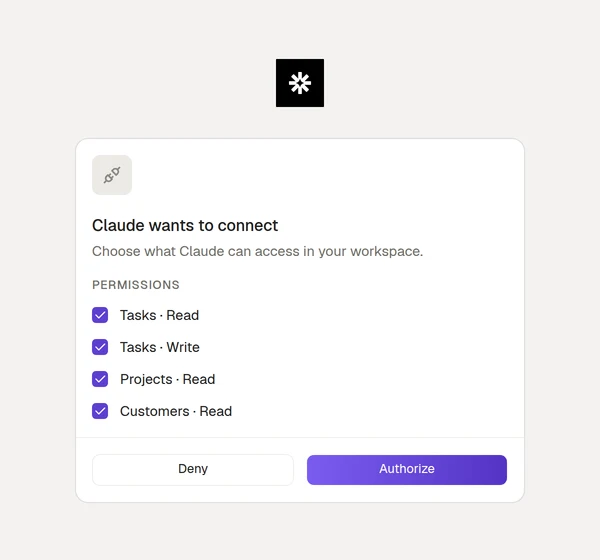
Each row reads as a resource and a level, like Tasks, Write or Projects, Read. Uncheck anything you are not comfortable with and press Authorize, or press Deny to walk away. If you uncheck everything, the Authorize button turns off, because a connection with no access would do nothing.
Two things worth knowing:
- The connection acts as you. It can never reach something your own account cannot reach.
- Approving write access does not mean silent changes. Every write is recorded, and you can revoke the whole connection in one click.
Managing a connection afterwards
Everything you approved shows up under the Connected apps tab.
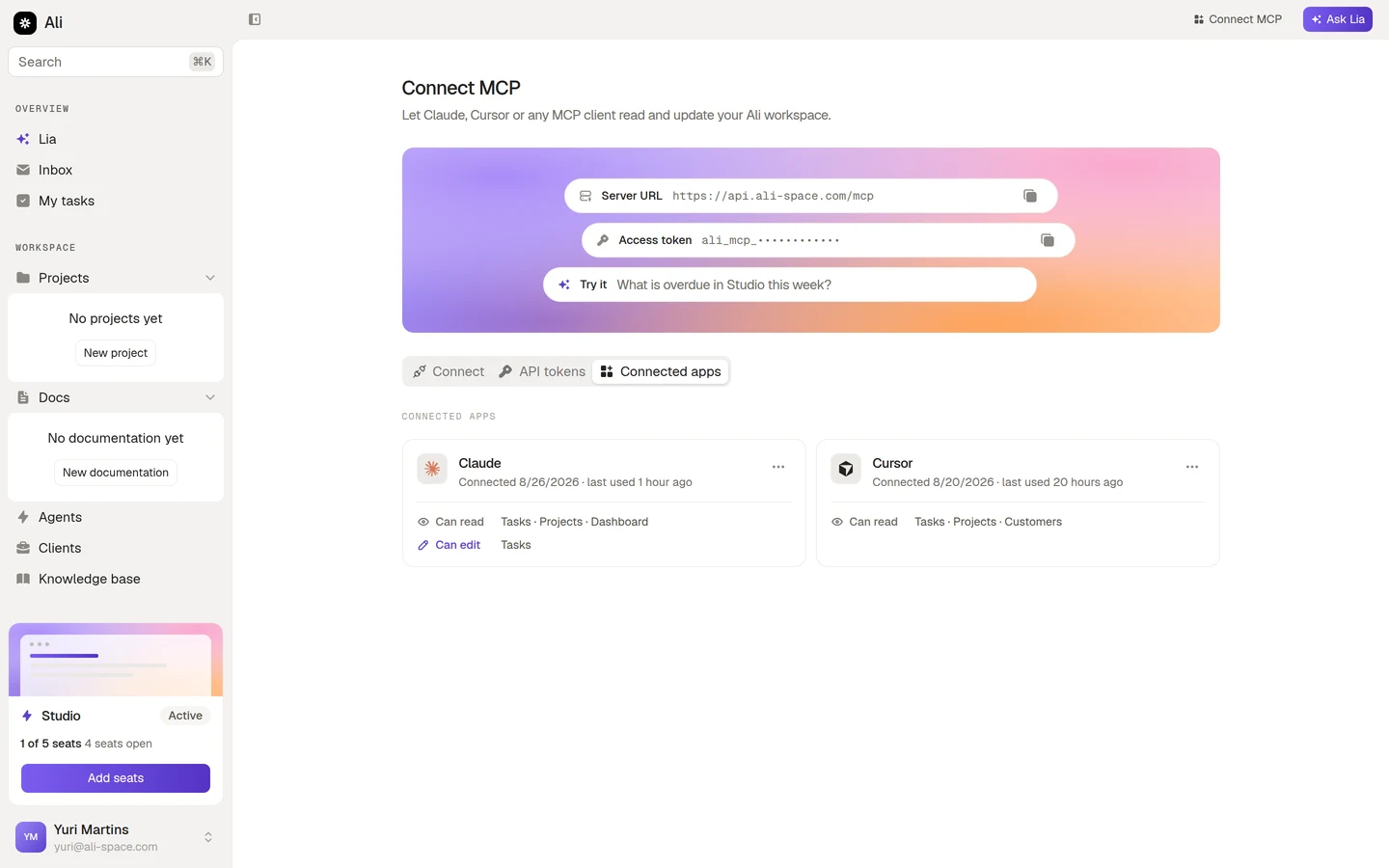
Each card carries the client name, when it was connected, when it was last used, and the resources it can read and edit. The menu on the right of a card revokes it. Revoking is immediate: the client loses access on its next call, and it will have to go through the consent screen again to come back.
If a card shows a last used date far in the past, that is usually a client somebody set up once and forgot. Revoke it. Setting it up again takes under a minute.
When one-click connect is not the right fit
The OAuth flow needs a browser and a person to approve it. A CI job has neither. For those cases, and for any CLI that only takes a header, create an API token instead.