

Add one from the catalogue
Install a ready made agent in one click, then adjust its schedule, its channel and what it may touch.
The catalogue is the fastest way to get a working agent. Each entry is a complete agent someone already designed: an instruction that has been tested, a sensible schedule, and a set of permissions that matches the job. You add it, adjust the two or three things that are specific to your workspace, and it starts running.
Scroll down on the Agents screen to Available to add.
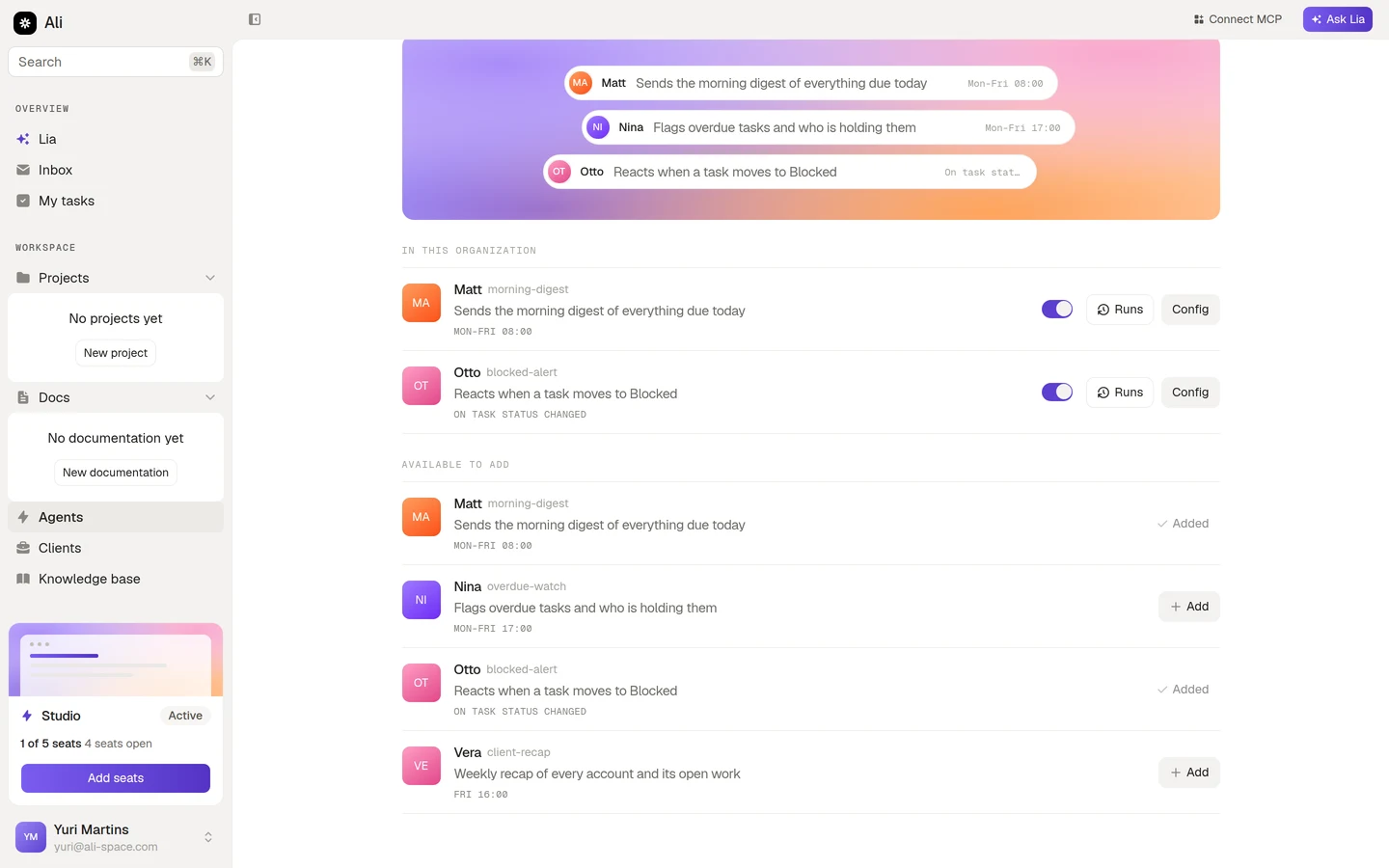
Each row gives you the name, the slug, a one line description of what it does, and when it runs. Something like MON-FRI 08:00 for a scheduled agent, or ON TASK STATUS CHANGED for one that reacts to events.
Agents already running in your workspace are marked Added instead of showing the Add button, so you never install the same one twice by accident.
Adding one
Press Add on the row you want. Ali creates the agent in your workspace right away, copying the template’s instruction, schedule and permissions.
If the agent needs something only you can decide, the configuration dialog opens by itself straight after. That is usually the case when the agent reports into a channel: the template knows it wants Slack, but it cannot know which channel is yours.
An agent that still needs a decision carries a Needs setup marker in the list. It will not run until you finish it.
Adjusting it
Whether the dialog opened by itself or you pressed Config on the row, you land on the same form. Four sections, top to bottom.
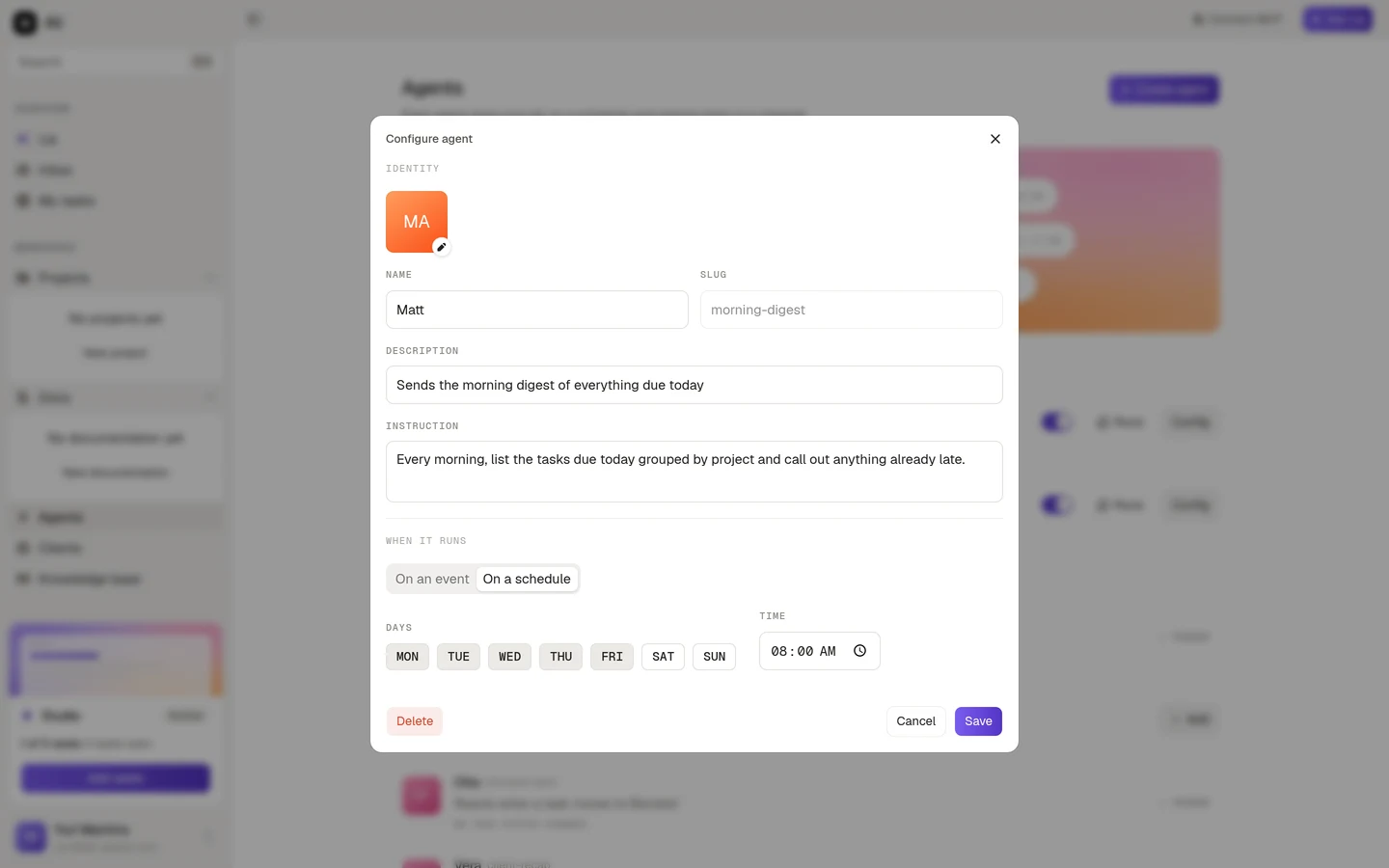
Identity is the name, the avatar, the description and the instruction. The slug is locked once the agent exists, since it is how runs and reports refer back to it. Everything else is yours to change, including the instruction: a template’s instruction is a good starting point, not a contract.
When it runs is the trigger. A catalogue agent arrives with a schedule already set, and the days, the time and the timezone are all editable. The line next to the timezone tells you how many runs that adds up to per week, which is a quick sanity check before you widen a schedule.
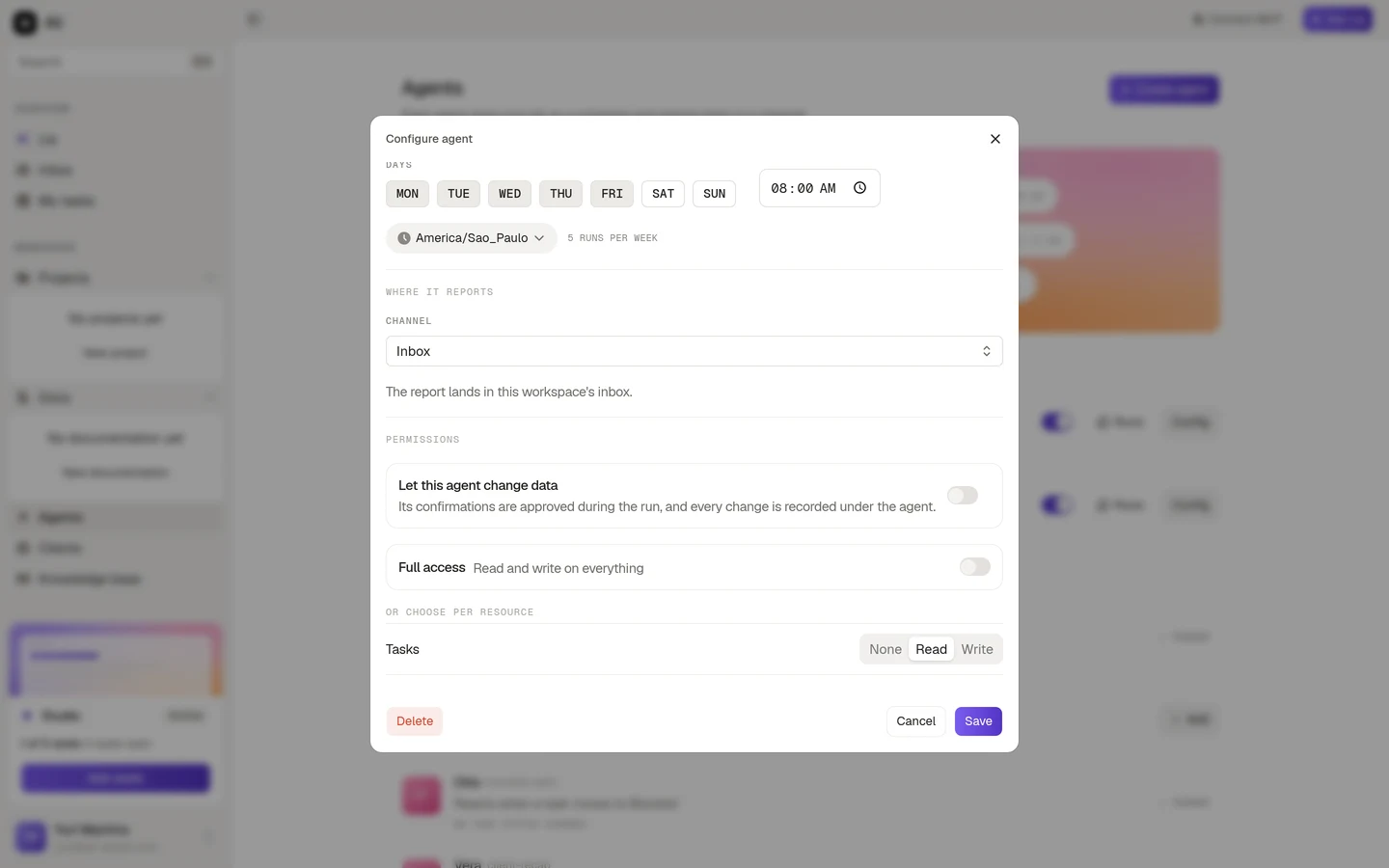
Where it reports is the channel. Inbox drops the report into the workspace inbox and needs nothing else. Slack and Discord ask you to pick a channel, and only offer channels from an integration that is already connected. If the integration is missing, the field says so and points you at Integrations. Email sends to people you pick, defaulting to the member the agent runs as.
Permissions is what the agent may touch. More on that below.
Turning it on and off
Back on the list, each agent has a switch. Off means the agent stays configured but stops running: its schedule is skipped and events pass it by. It is the right move when you want to pause something for a week without losing its setup and its history.
Runs opens the history. Config opens the form again. Delete at the bottom of the form removes the agent for good, along with its schedule.
What it may touch
Catalogue agents arrive read only. That is deliberate: an agent that only reads can be wrong in its report, but it cannot be wrong in your data.
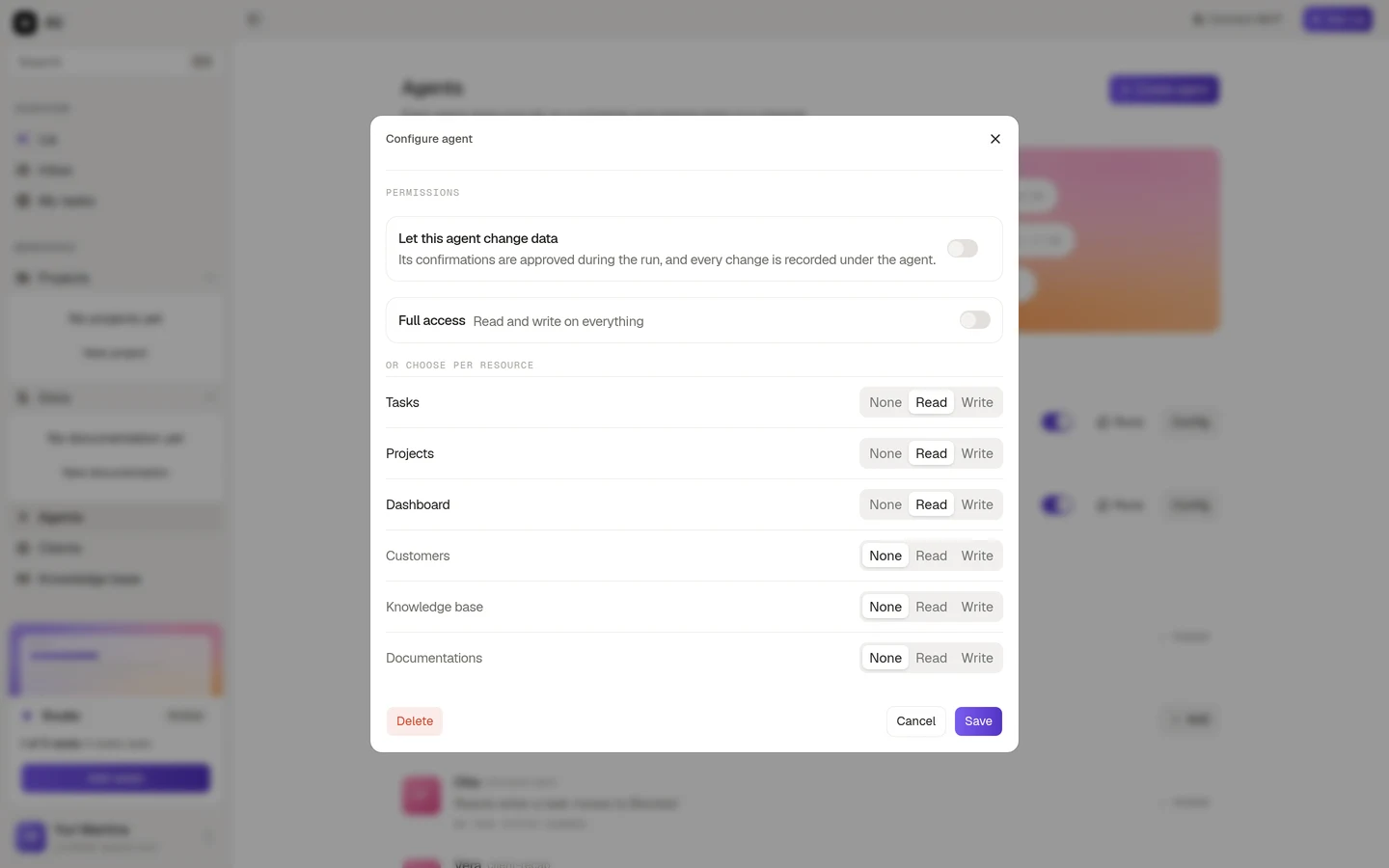
The switch at the top, Let this agent change data, is what unlocks writing. Leave it off and every row stays at Read, no matter what you click. Turn it on and you can lift individual resources to Write, or flip Full access to grant write on everything at once.
When an agent can change data, its confirmations are approved during the run and every change is recorded under the agent, so you can always trace a change back to the agent that made it.
Dashboard and Knowledge base stay read only whatever you do, because they are read surfaces.