

Boards and views
Boards hold the work, columns map to statuses, and the same tasks read four ways: kanban, list, timeline and calendar.
The Tasks tab is where a project actually gets worked. It has three layers, and they are worth separating once: a project has boards, a board has columns, and a column shows the tasks that carry its status.
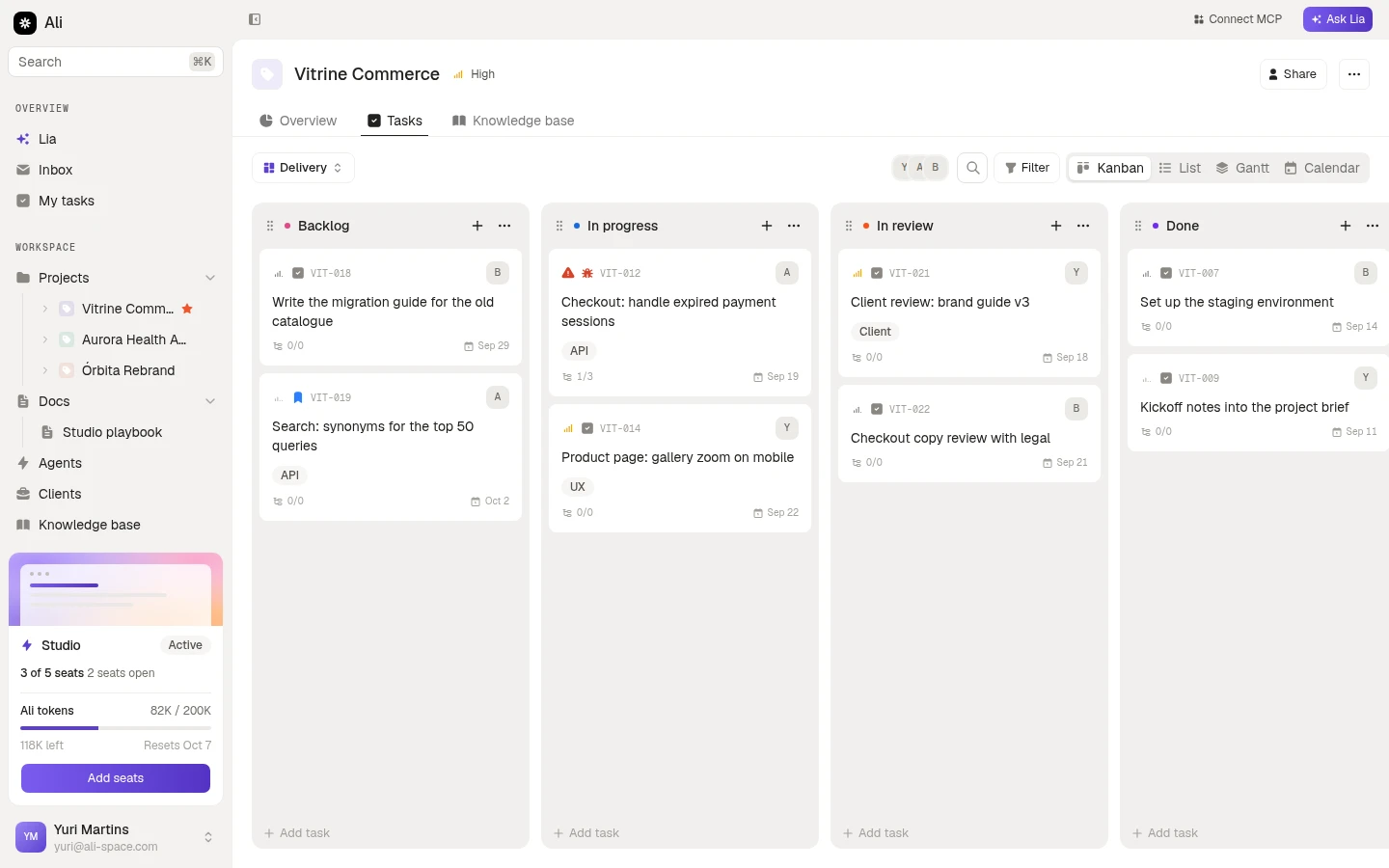
Boards
A board is a slice of the project. Most projects only ever need one, but a second is useful when two streams share a client and nothing else: delivery and discovery, this quarter and the backlog, build and launch.
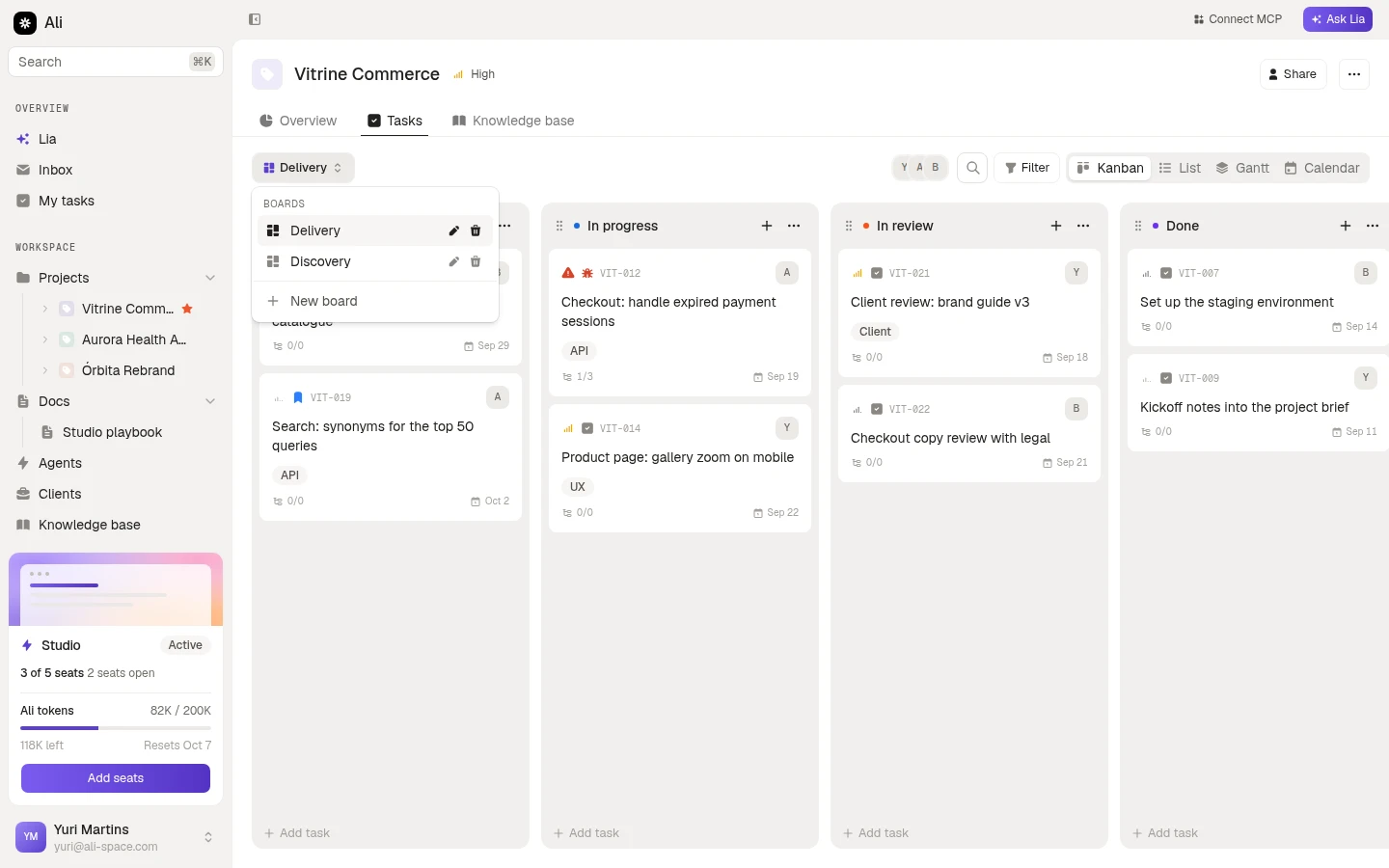
The selector on the left of the toolbar lists the boards in the project. Each row has a pencil to rename it or change its description, and a bin to delete it. New board takes a name and an optional description.
Ali remembers the board you were last on per project, so going back to a project puts you where you left it.
Columns and statuses
A column is a lane on the board. A status is a workspace-wide label a task carries. The column points at the status, which is why the same task shows up in the right lane on every board that has one.
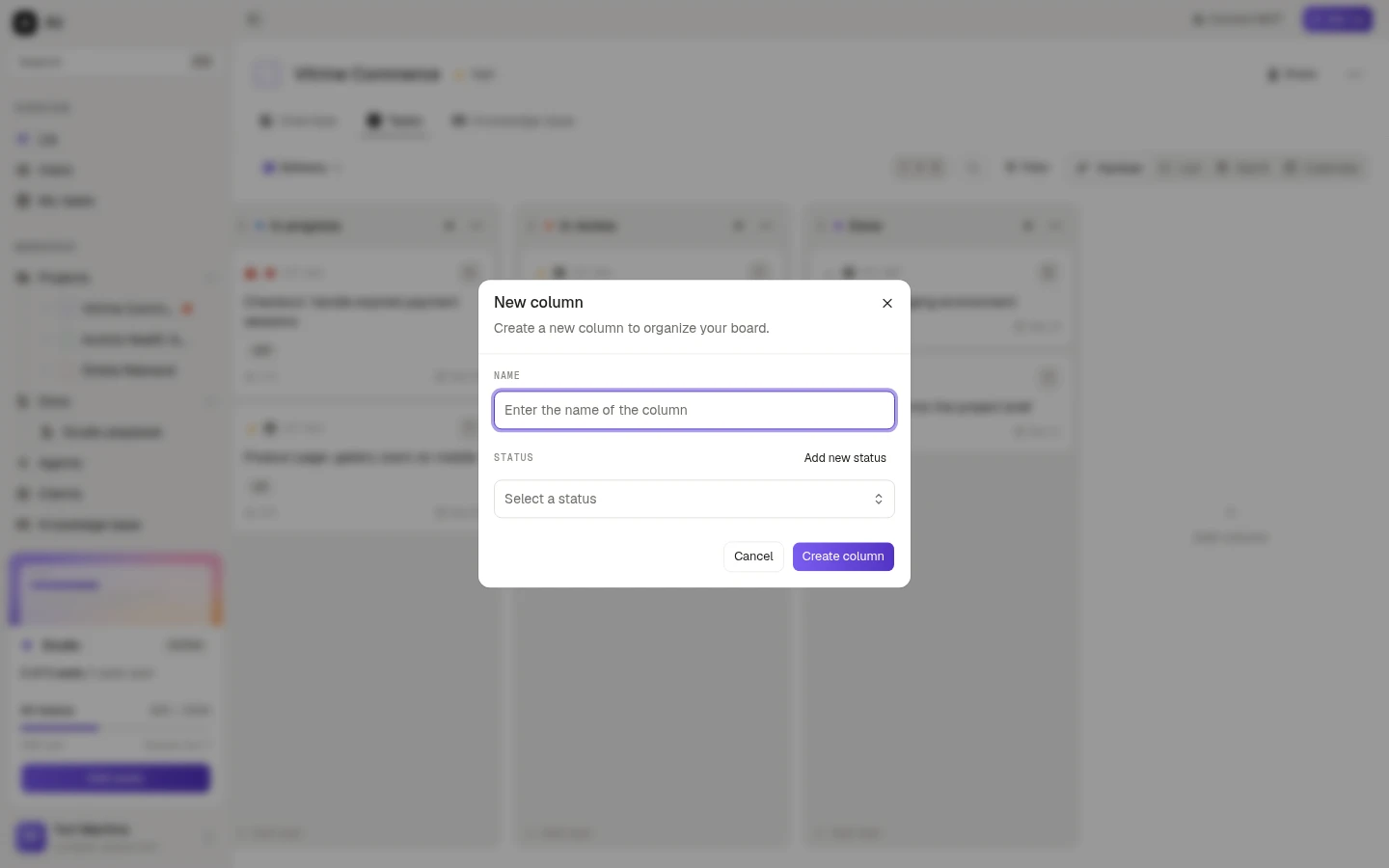
Add column, at the end of the board, asks for the name and the status behind it. Add new status inside that dialog creates a status without leaving the flow, for when the one you need does not exist yet.
The … menu on a column header renames it, reorders it or deletes it. Deleting a column asks you to confirm and cannot be undone.
Dragging a card to another column changes the task’s status. Dragging a card within a column changes its order.
The four views
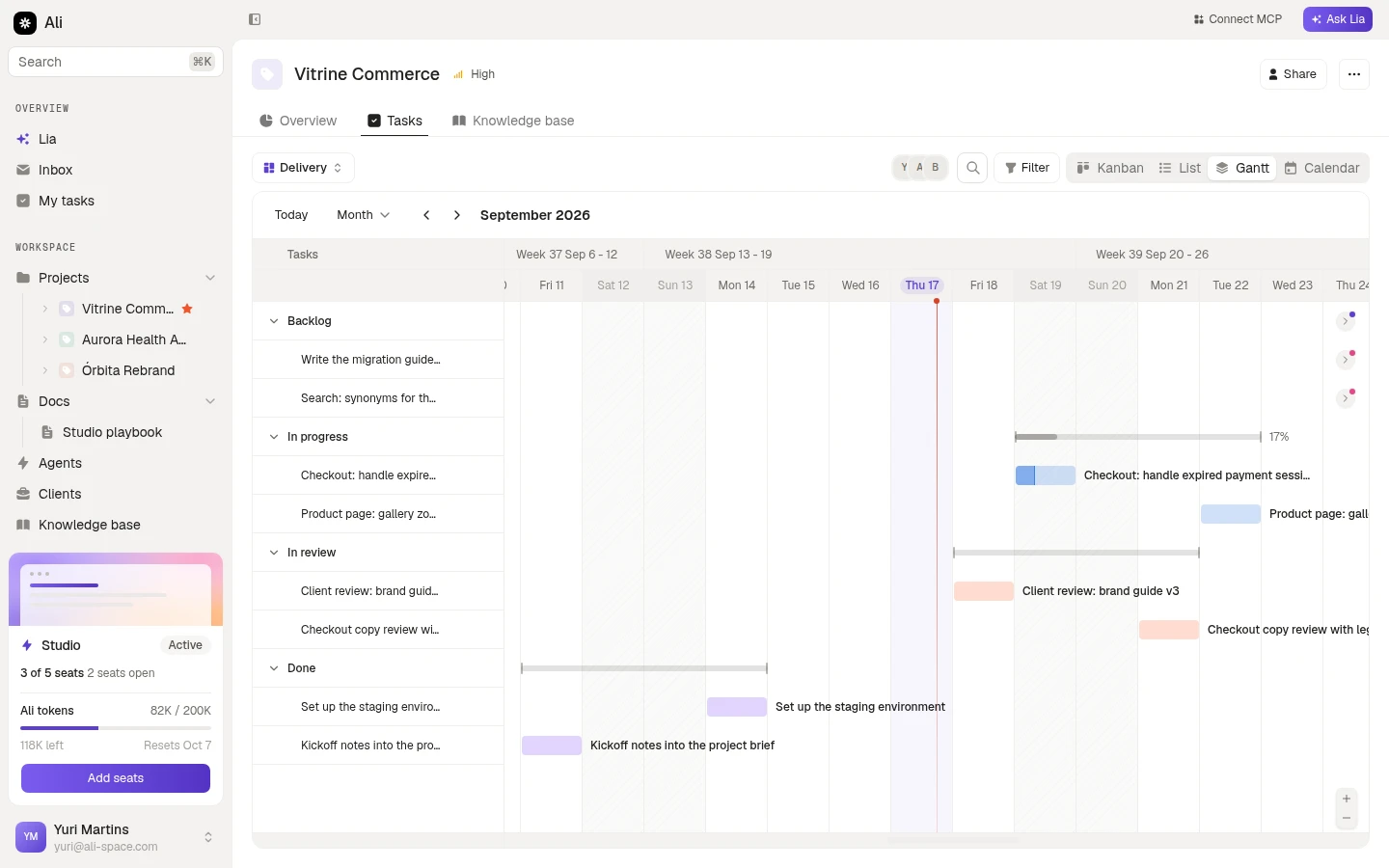
The tabs on the right of the toolbar show the same tasks four ways. They are views, not filters: nothing is hidden by switching.
Columns and cards. This is the one for moving work: drag a card and the status follows. Each card carries the task code, type, priority, assignee, tags, subtask count and due date.
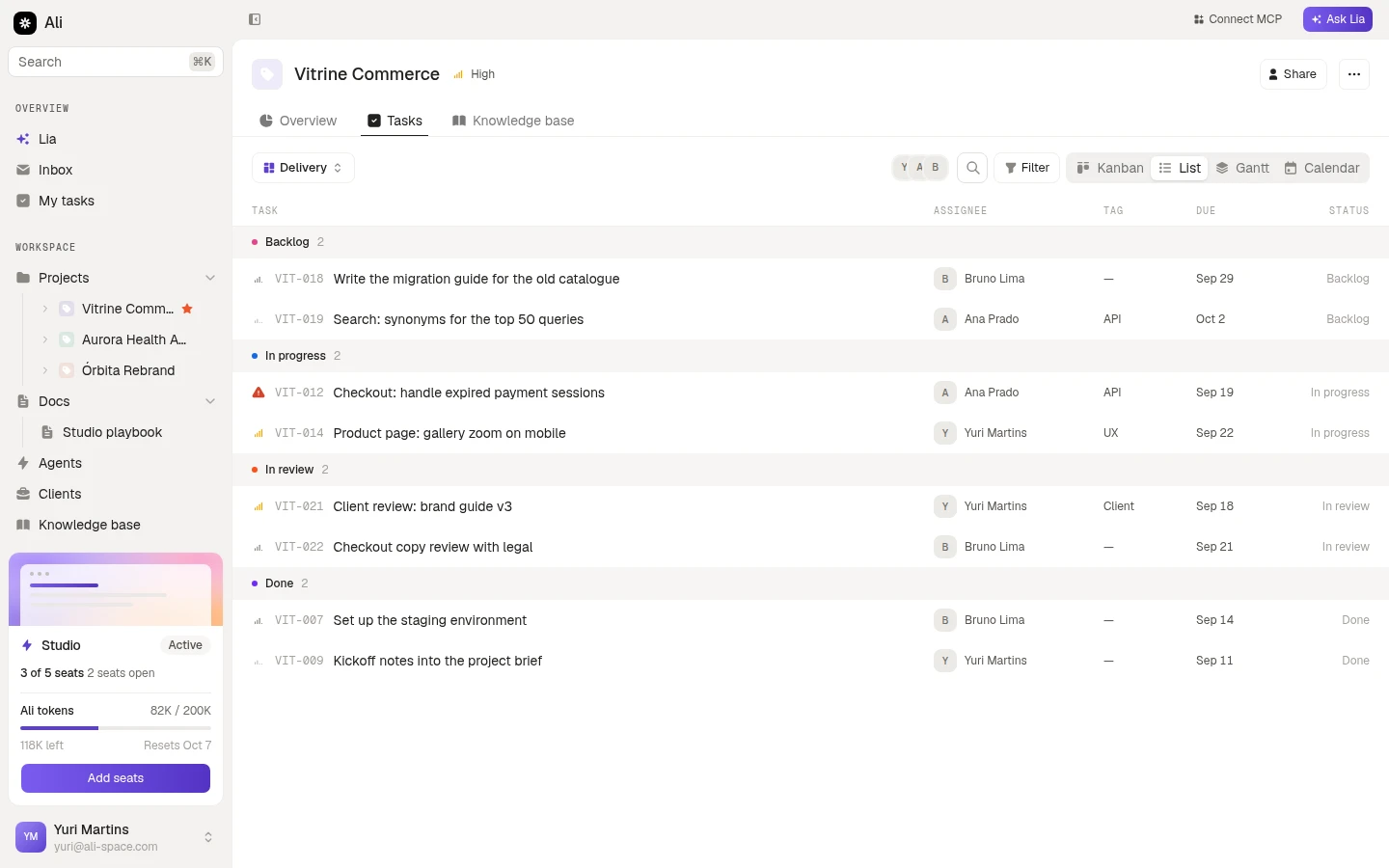
One row per task, grouped by status, with the assignee, tag, due date and status in columns. Better than the board once a project has more tasks than fit on a screen.
A timeline. Tasks with a start and a due date become bars, grouped by status, with today marked. This is where a plan that does not fit the target date becomes obvious.
Tasks on the days they are due. Useful for a week that looks fine on the board and crowded on a calendar.
Narrowing what you see
Three controls sit between the board selector and the views.
The avatars filter by assignee: click a face to see only their tasks, click it again to clear it.
Search matches task names as you type.
Filter is the bigger one.
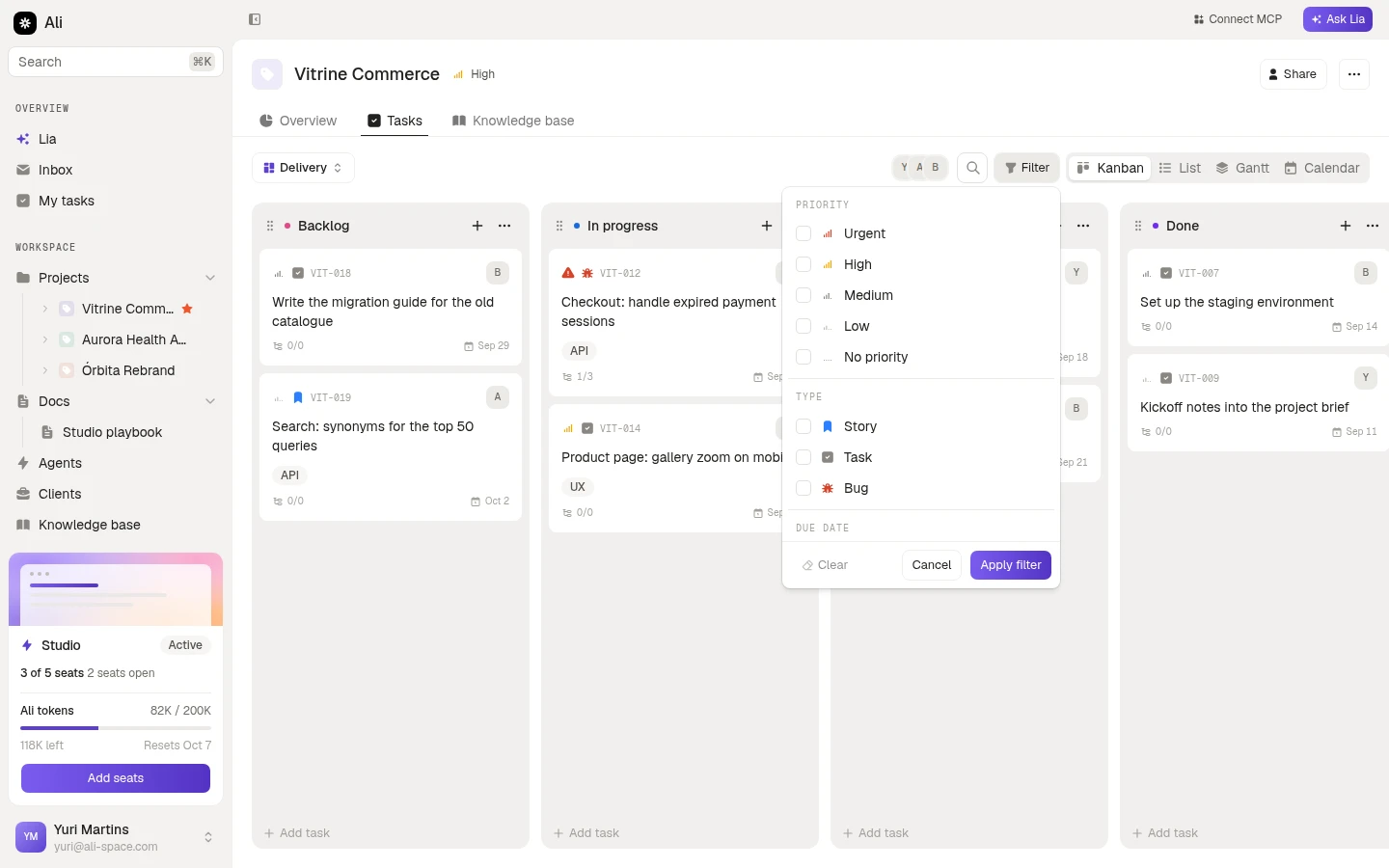
It stacks priority, type, due date and tags, plus Show archived for tasks somebody archived. Clear drops everything, Apply filter commits it. The filter applies to whichever view you are in, and the Filter button carries a badge with how many filters are on, so you do not spend ten minutes wondering where a task went.