

Members and roles
Inviting people into the workspace, what each role can do, how seats work, and what happens when somebody leaves.
Everyone with an account in your workspace is listed in Settings → Company → Members & seats. The whole Company part of settings is for owners and admins: a member does not see it at all.
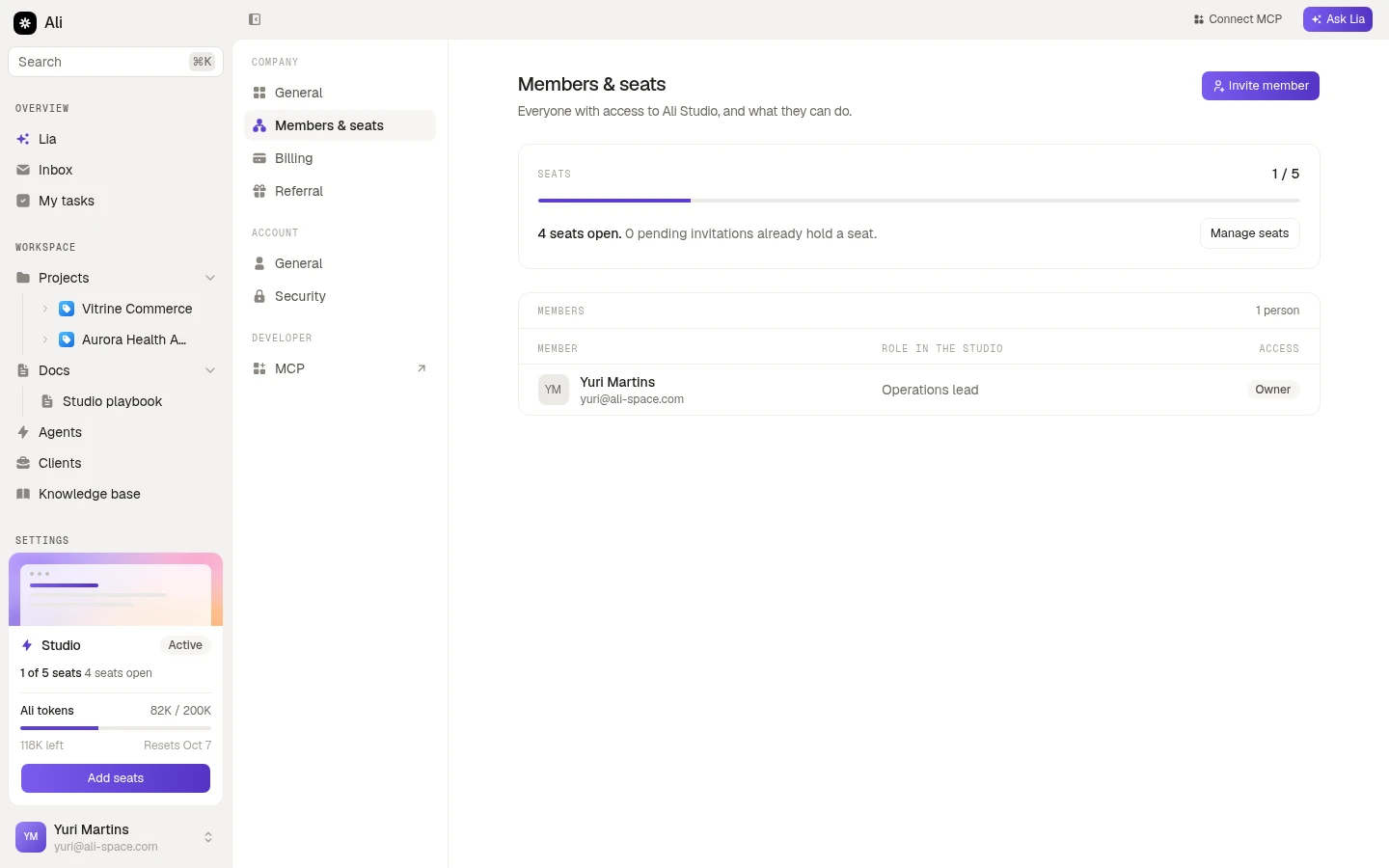
The screen is two blocks: the seats you are paying for at the top, and the people using them underneath, with their role and access.
Inviting somebody
Invite member takes an email and a role.
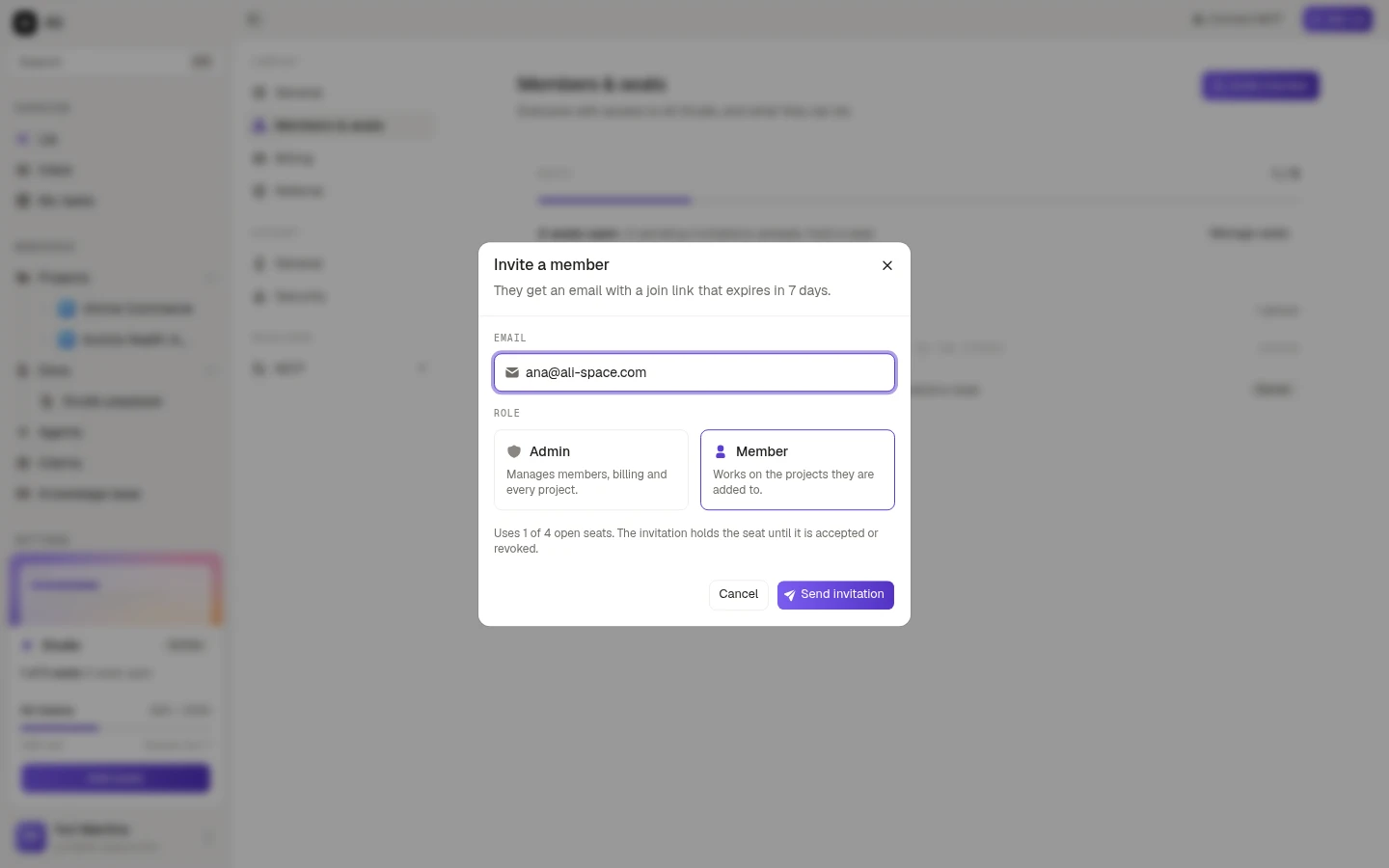
The invitation is an email with a join link that expires in 7 days. It holds a seat from the moment you send it, which the dialog says plainly: “Uses 1 of 4 open seats. The invitation holds the seat until it is accepted or revoked.”
Invitations that have not been accepted sit under Pending invitations, with when they were sent, a Resend and a Revoke. Revoking gives the seat back.
The three roles
| Role | What it can do |
|---|---|
| Owner | Everything an admin can, plus the workspace itself. It is whoever created the workspace |
| Admin | Manages members, billing and every project. Sees Integrations in the sidebar |
| Member | Works on the projects they are added to |
The practical difference between Admin and Member is reach: an admin sees every project and the billing, a member sees the work they are part of.
Seats
A seat is a paid slot on your plan. The counter at the top of the screen shows how many are used and how many are open, and it counts pending invitations as used, because they are holding a place.
Manage seats changes the number, and billing follows it. Running out of seats does not break anything: the invite dialog just tells you there is no room until you add one or revoke an invitation.
Removing somebody
The button on the right of a member’s row removes them, and the confirmation is explicit that access ends immediately. It should be: a removed member loses the workspace, and anything they connected on their own account — an MCP client, an API token — stops working with them.
The owner’s row has no remove button, so handing a workspace over is the one thing this screen will not do for you.
Their work stays. Tasks they created, comments they wrote and documents they edited keep their name on them.