

Meeting notes
Connect Granola or Fireflies with an API key, and every new meeting is written up in Ali with the tasks Lia read in it.
A call happens, somebody takes notes, and the notes stay in the notes app. Connect Granola or Fireflies and that stops: from then on, every new meeting is written up under Meetings, and Lia reads it for the work it implies, so the tasks somebody agreed to are already there when you look.
Both connect the same way, with an API key you copy from their settings rather than a sign-in. Fireflies needs one extra step, a webhook pointing back at Ali, and that is the only real difference between the two.
Pasting the key
Press Connect on the row and you get one field.
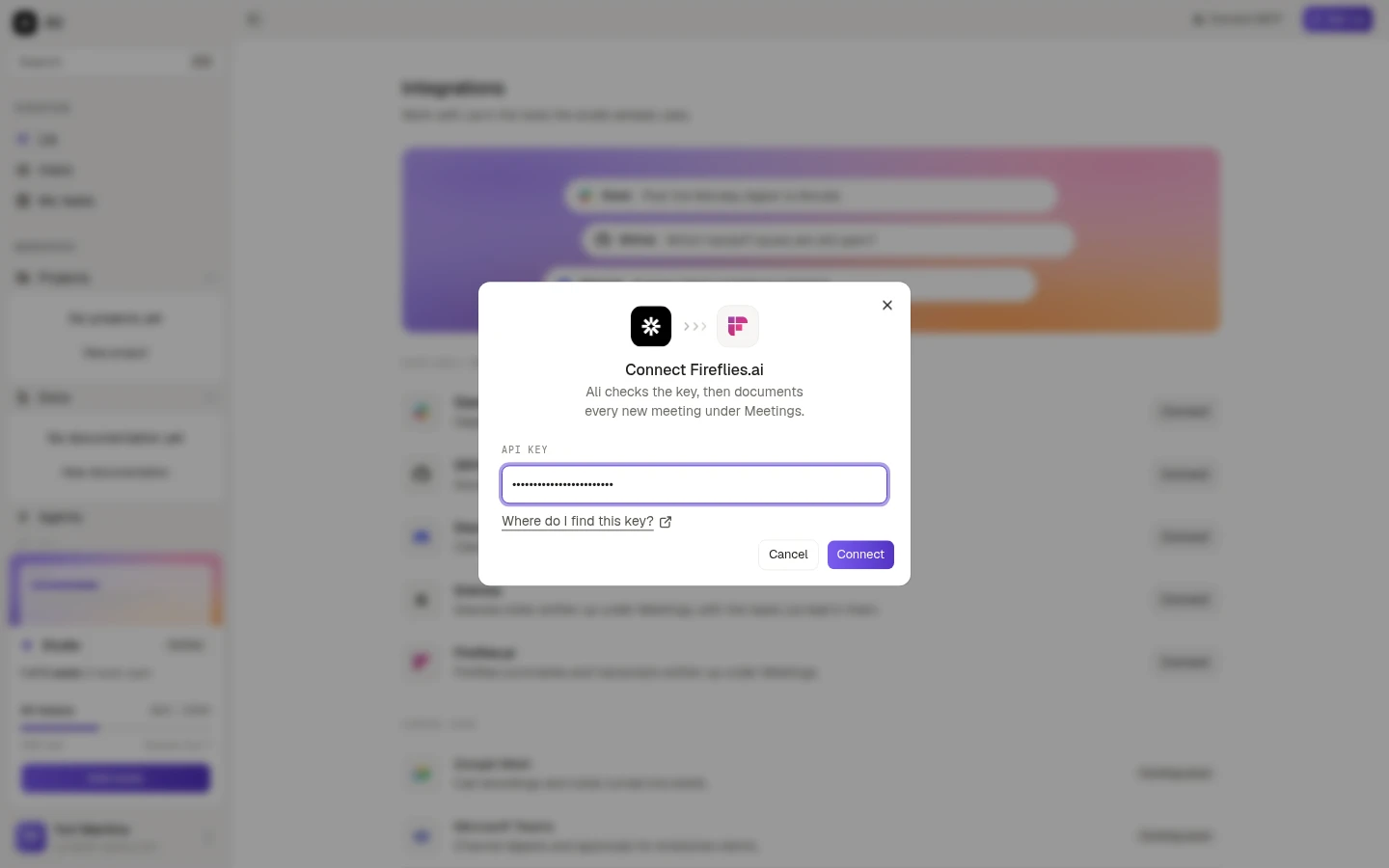
Where do I find this key? opens the app’s own documentation on the page that hands you one. Paste the key and press Connect. Ali checks it against the app before saving anything, so a key that was copied badly fails here rather than silently later.
Granola
Once the key checks out, Ali registers a webhook endpoint with Granola and the panel shows what it got back.
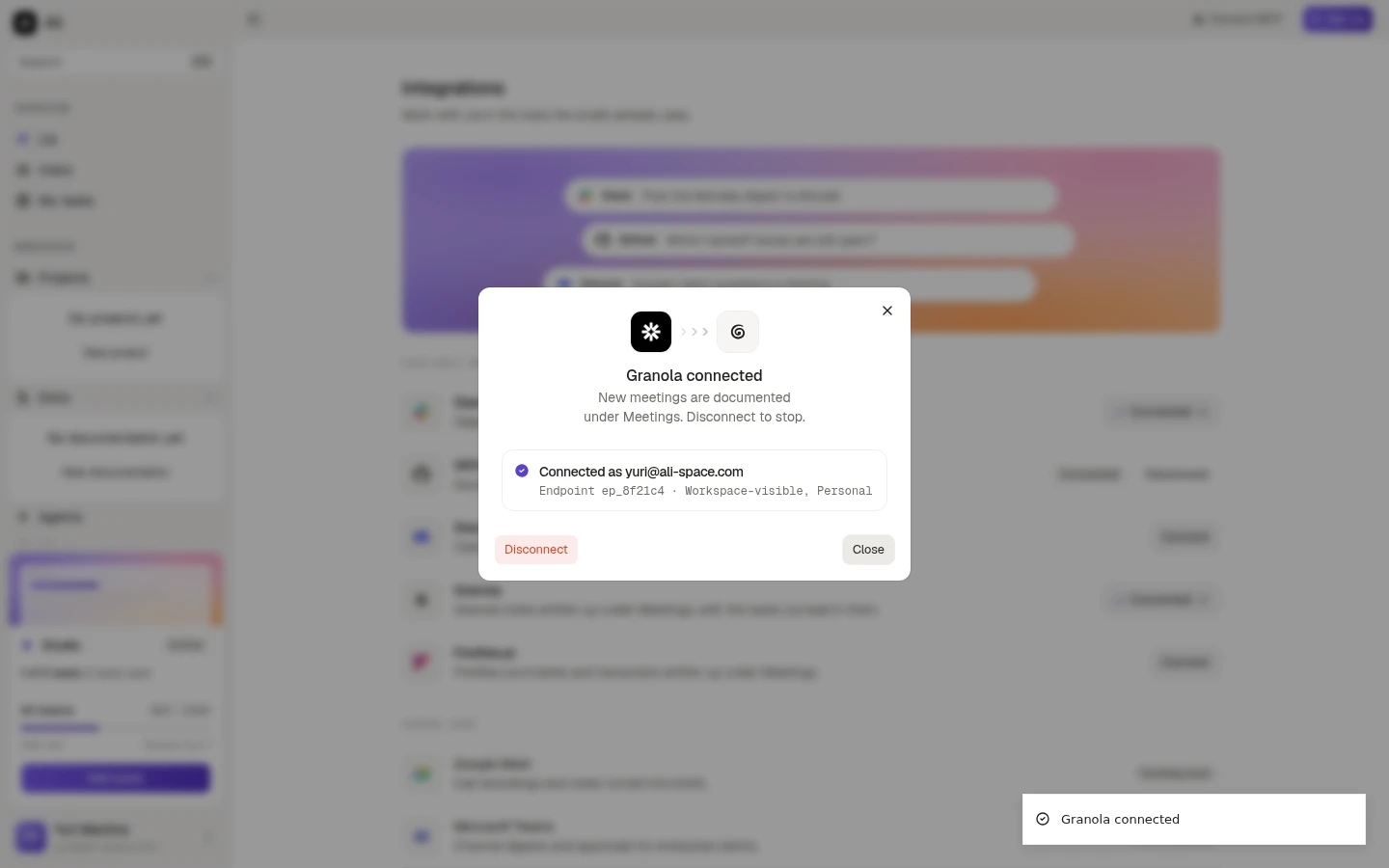
The detail line carries the endpoint Ali created and the scopes Granola granted it — Workspace-visible and Personal above. Those scopes live on Granola’s side and decide which of your notes reach Ali: the ones your workspace can see, your personal ones, or both. To change them, change them in Granola.
There is nothing else to configure. New meetings start arriving on their own.
Fireflies
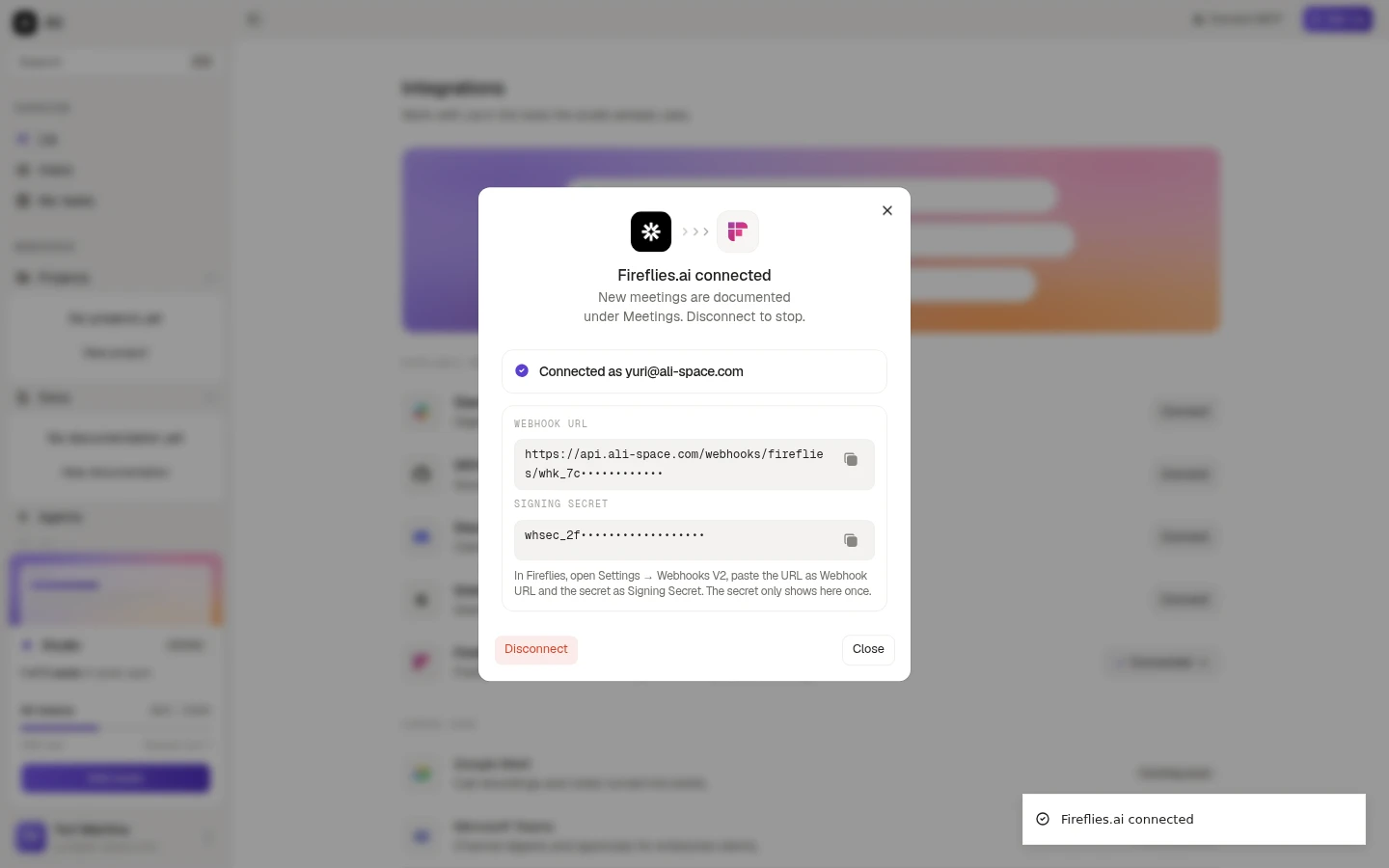
Fireflies does not push to Ali by itself, so connecting gives you a webhook to paste back into it. This is the one screen where the order matters, because the signing secret is shown exactly once.
Copy both values
The Webhook URL and the Signing secret each have a copy button. Copy them now, while the panel is still open.
Open Fireflies
Go to Settings, then Webhooks V2.
Paste them
The URL goes in as the Webhook URL, the secret as the Signing Secret. That secret is how Ali proves a call really came from Fireflies.
Reopen the connection later and the secret is no longer there, replaced by whether signature verification is on.
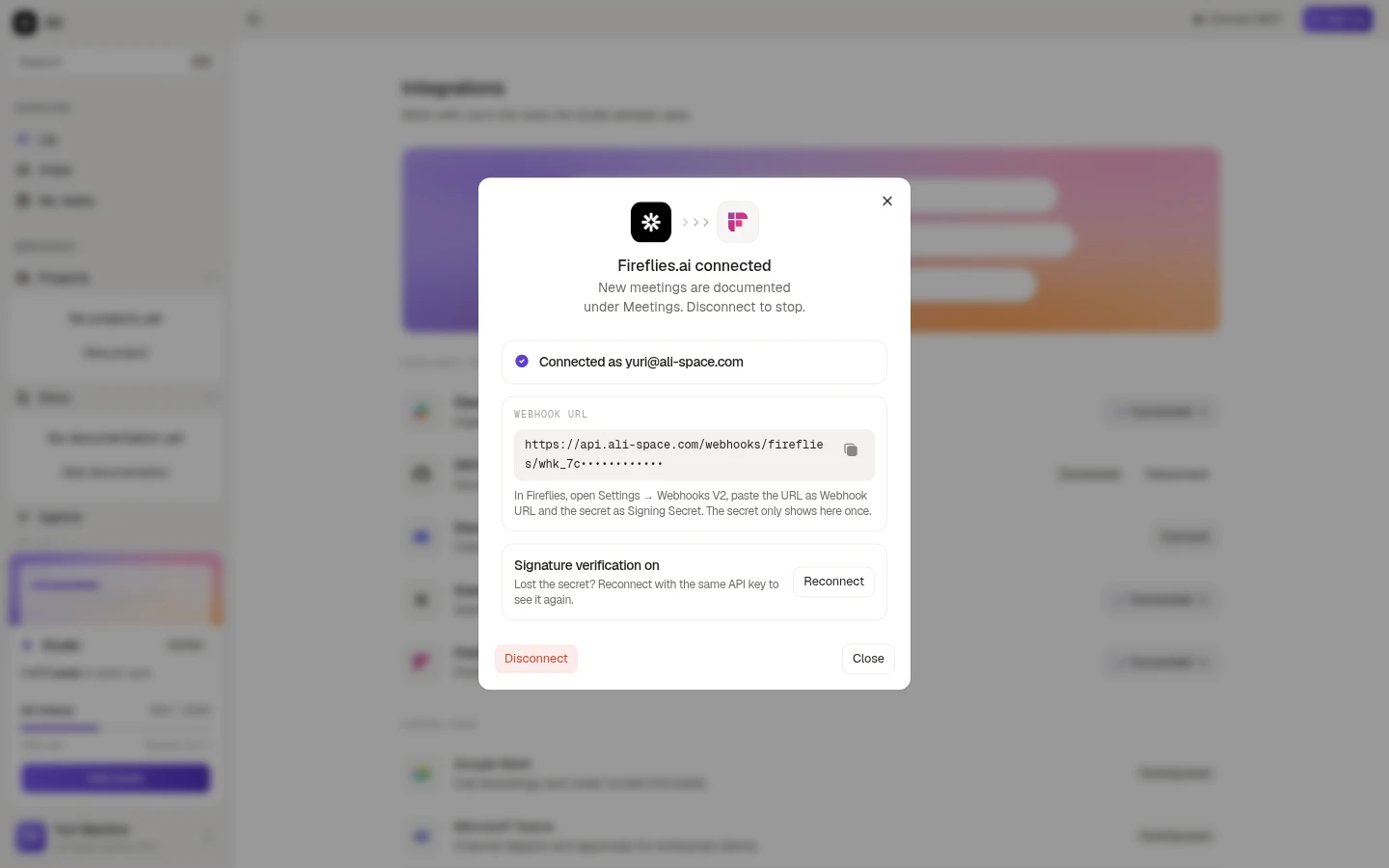
Signature verification on means Ali is checking signatures on what Fireflies sends. If it is off, or you lost the secret before pasting it, press Reconnect and paste the same API key again. The panel shows the webhook URL and a secret once more, and both go back into Fireflies.
What lands in Ali
Whichever of the two you connect, the result is the same shape: each new meeting becomes a document under Meetings, and Lia reads it for tasks worth suggesting.
Reading a meeting spends Ali tokens. They show up in your plan’s usage breakdown under Meeting task suggestions, next to agents and the assistant, so a week of heavy call days is visible there.
Both apps work by webhook, so only meetings that happen after you connect are written up. Nothing that already happened is backfilled.
Disconnecting
Disconnect stops new write-ups immediately, and Ali forgets the key. For Fireflies, the webhook you pasted over there stops being accepted, so remove it in Fireflies as well to keep things tidy.
Documents that were already written stay where they are. They are ordinary documents in your workspace now, and the tasks created from them are ordinary tasks.