

The task panel
Everything a task holds once you open it: properties, description, subtasks, comments, attachments, logged time, and the archive.
Clicking a task anywhere — a card, a list row, a bar on the timeline — opens the panel. It is the same panel everywhere, and everything in it saves to the task you are looking at.
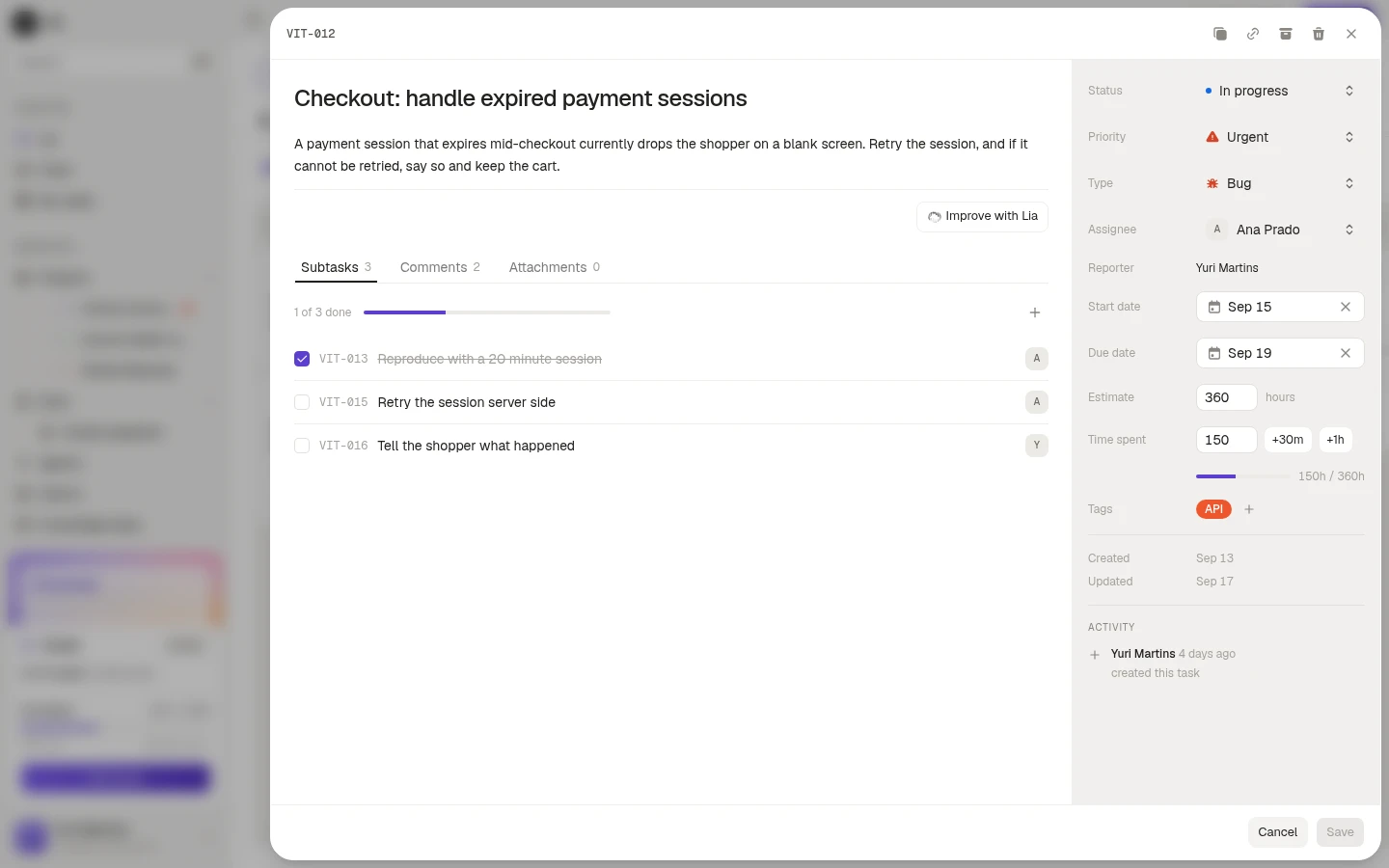
The properties column
Down the right side is every field the task carries. Status, priority, type and assignee are pickers. Start and due dates open a calendar and clear with the ×. Tags add with the +.
Two of them earn their own paragraph:
Estimate is how long the task should take, in hours. Time spent is how long it actually took, and the +30m and +1h buttons next to it are the fastest way to log time without doing arithmetic. The bar underneath shows the two against each other, so a task at 150h of a 360h estimate reads at a glance.
Below the pickers, Reporter is whoever created the task, and Created and Updated are the dates. Activity, at the bottom, is the running record: who created it, and what changed since.
Description, and Lia
The body of the panel is the title and the description, both editable in place. Improve with Lia takes what you wrote and tightens it, which is most useful on a task somebody dropped in as five words during a call.
The three tabs
Tasks inside the task, each with its own code, owner and checkbox. The counter at the top reads “1 of 3 done” with a bar, and the + adds one. Use them when a task has steps somebody else might take, and leave them alone when a checklist in the description would do.
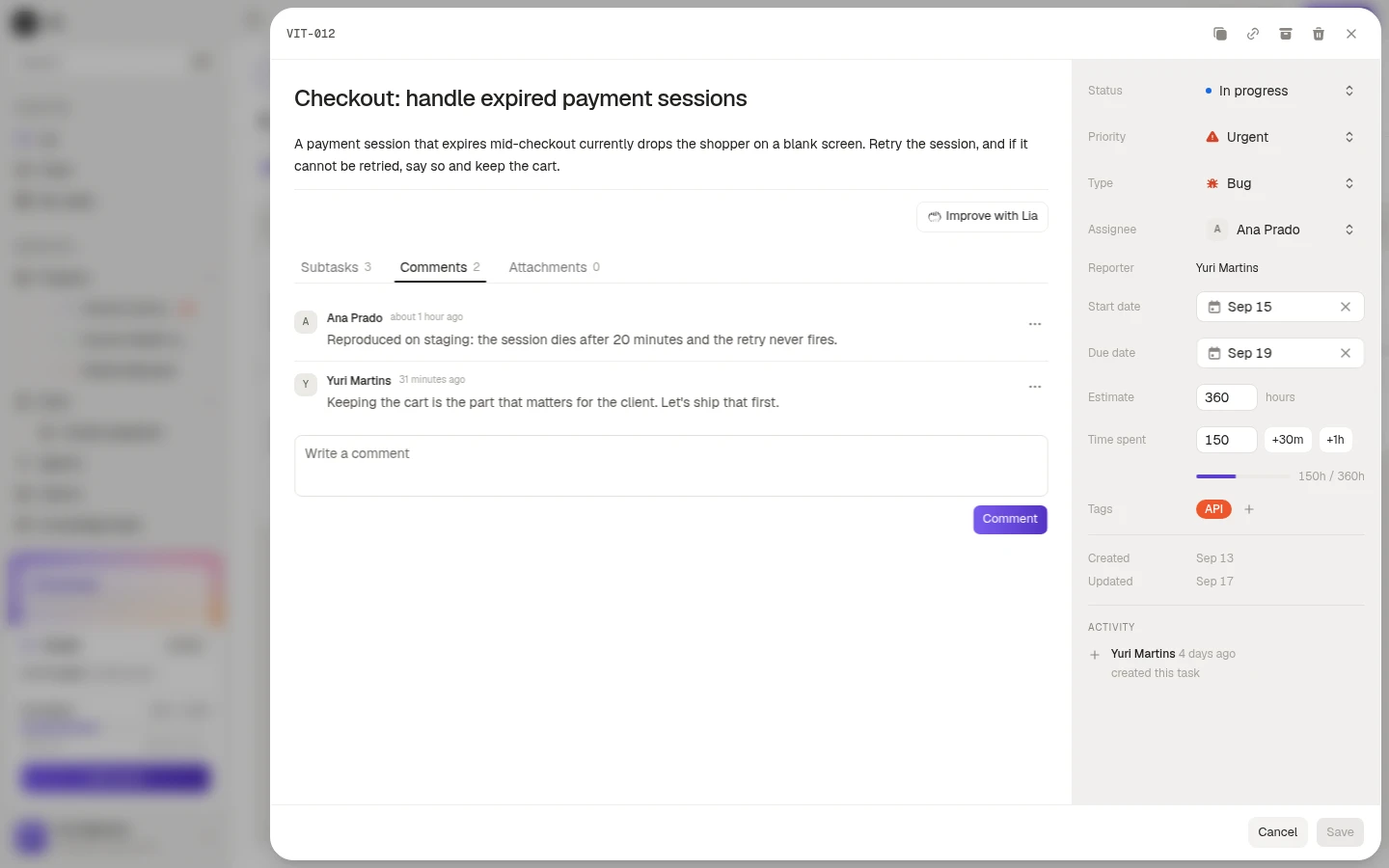
The conversation about this task. Comments carry the author and the time, can be edited or deleted from the menu on the right of each one, and an edited comment says so.
Files on the task. Add attachment uploads, and each file can be downloaded or removed.
The header actions
The icons at the top right of the panel, in order: duplicate the task, copy a link to it, archive it, delete it, close the panel.
Copy link puts a URL on your clipboard that opens the workspace on this exact task, which is what you paste into Slack instead of describing it.
Archive takes the task off the board without deleting anything. Archived tasks come back with Show archived in the board filter, and the panel shows an Archived badge with a Restore next to it. The confirmation toast also carries an undo.
Delete is permanent, names the task in the confirmation, and cannot be undone.