

Set up your workspace
The setup Lia walks you through the first time, which steps you can skip, how the trial works, and how to get your team in.
The first time you sign in with a new account, Ali does not drop you into an empty screen. Lia walks you through setup, one question per screen, and the panel on the right shows what each answer changes.
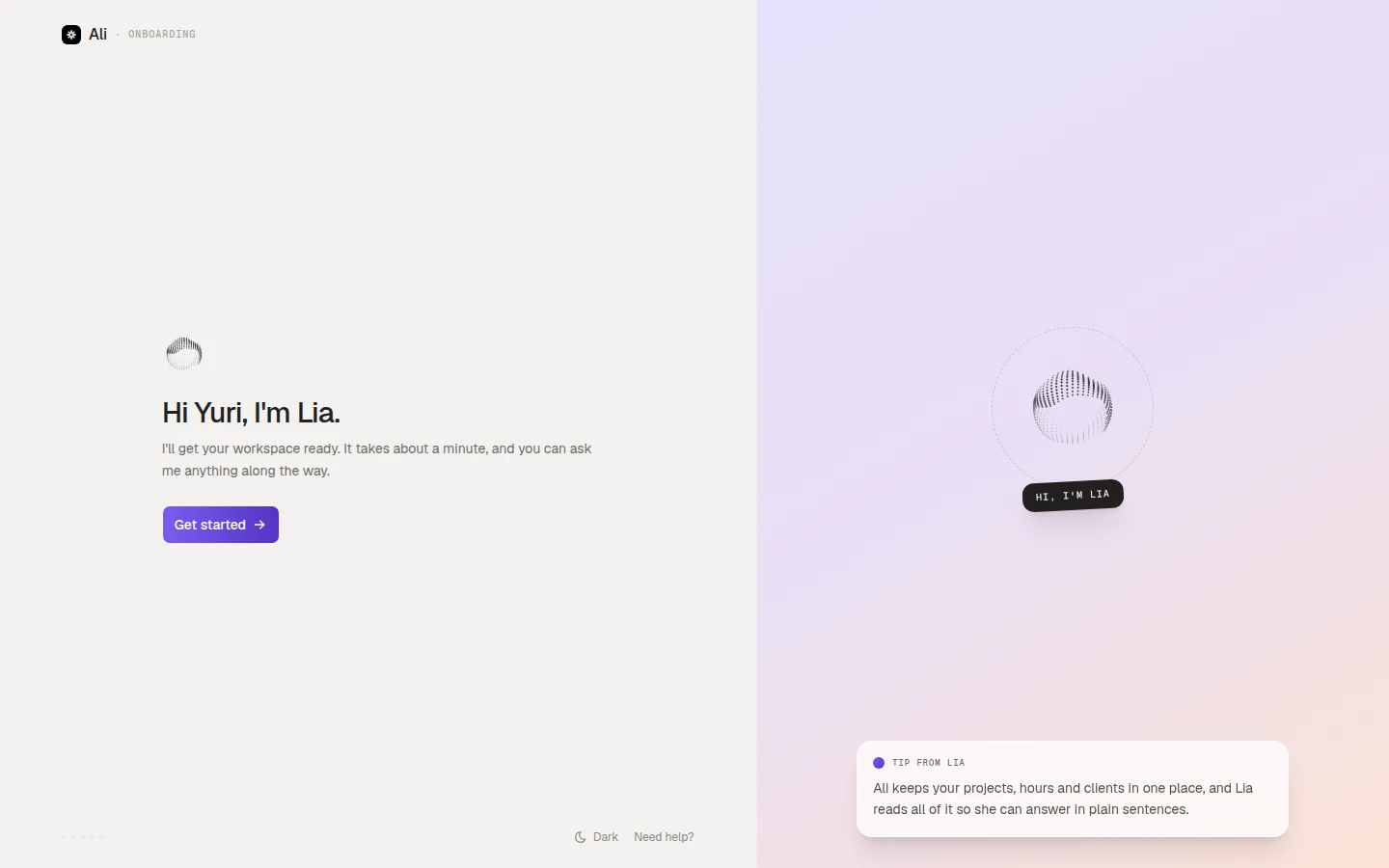
It takes about a minute. You only see it once, and everything you answer here can be changed later in settings.
What it asks
Your profile
Your name, and optionally a phone, a role and a picture. The name is the only required field: it is what your team sees in mentions, task owners and every answer Lia gives about your work.
Your workspace
The company name, a logo if you have one, and a slug. The slug becomes your workspace URL, ali-space.com/your-slug, and Ali fills it in from the name as you type.
The company
Industry, size, city, country and website. All optional.
Where you heard about us
One tap, or skip it.
Your plan
Nothing to choose. Every workspace starts on Scale with a 30 day trial.
The profile step
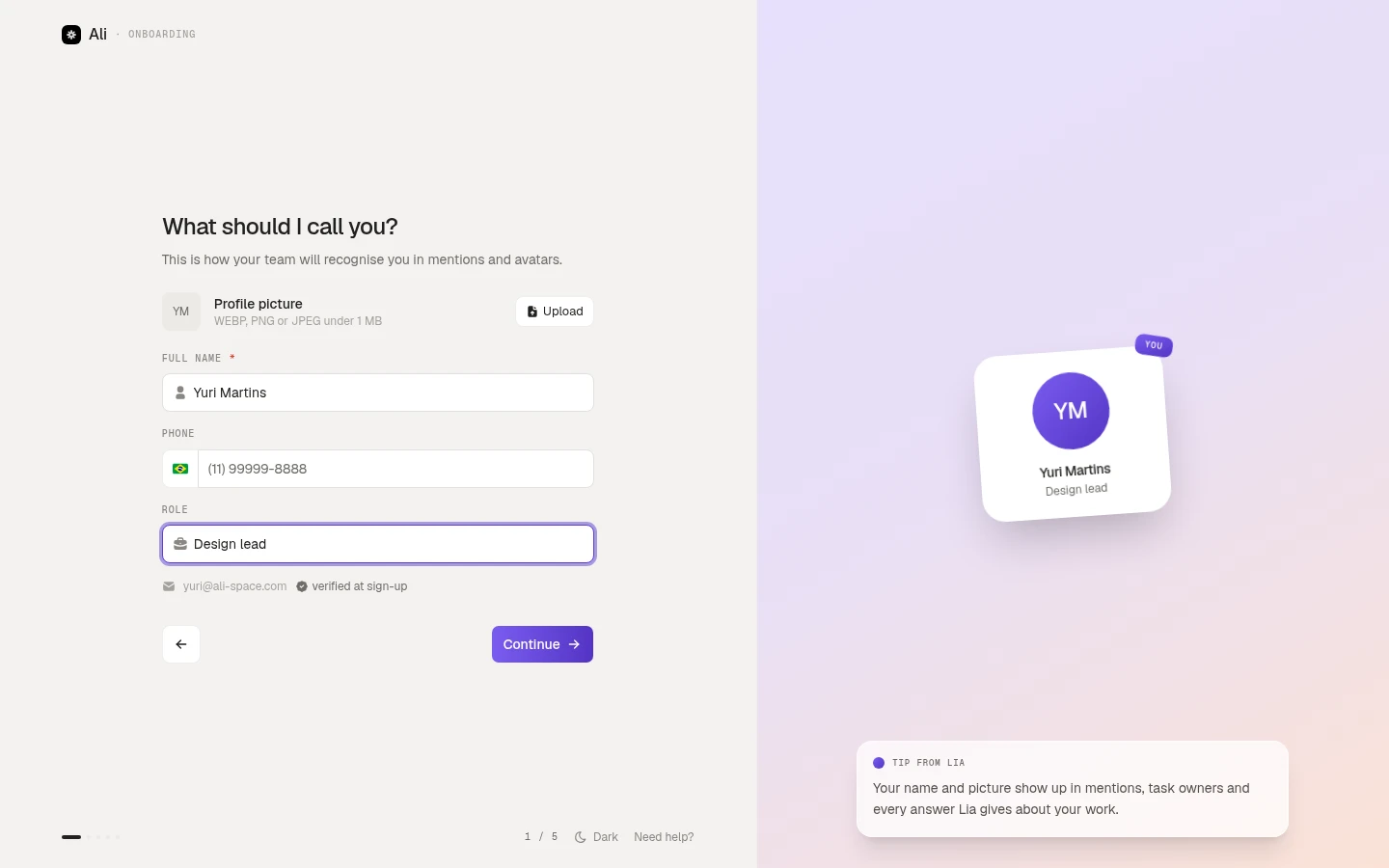
The email is already there and already verified, since you just signed in with it. A picture is optional: WEBP, PNG or JPEG, up to 1 MB. Without one you get your initials on a coloured circle, which is perfectly fine.
The workspace step
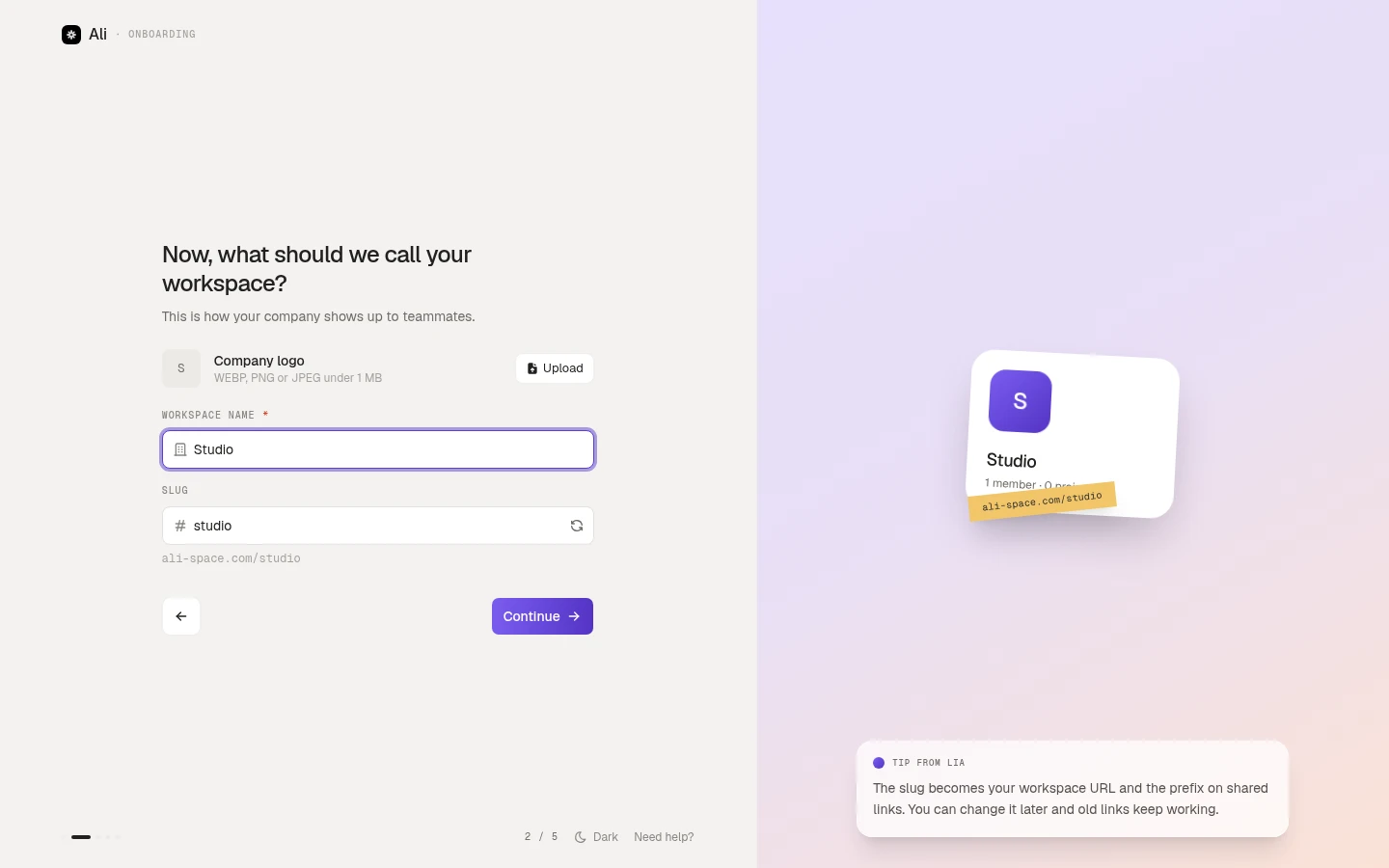
Type the company name and Ali generates the slug under it. You can edit the slug by hand, and the button on its right regenerates it from the name. If the slug is already taken, the field says so before you can continue.
The optional middle
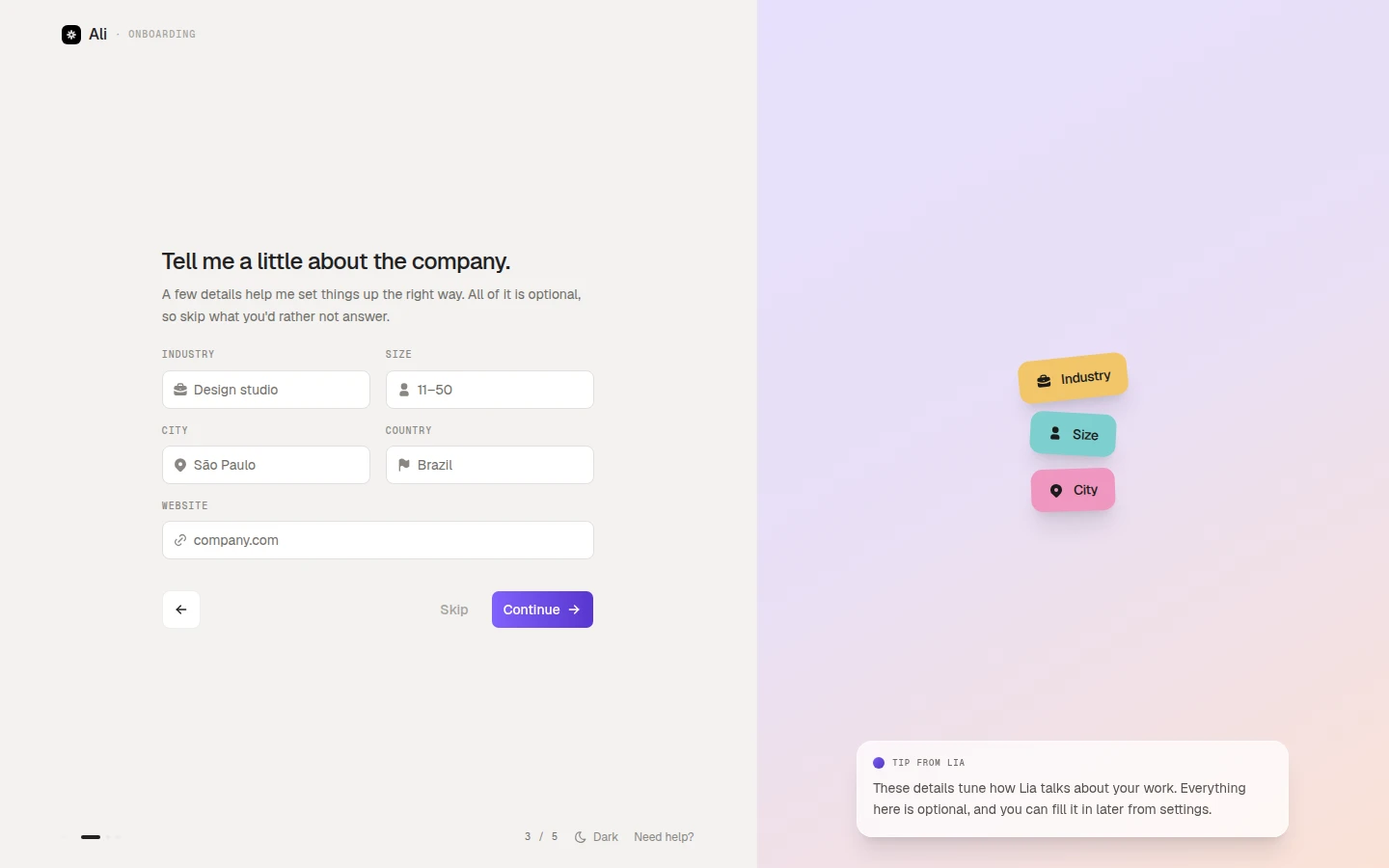
The company and source steps both carry a Skip. Skipping costs you nothing you cannot add later, in Settings → Company → General.
Slack and Discord
Slack and Discord are not part of setup. Connect them on the Integrations screen once the workspace is open, so Lia can answer and post where the team already talks. Which channel gets which update is decided later, when you set up an agent.
The plan step
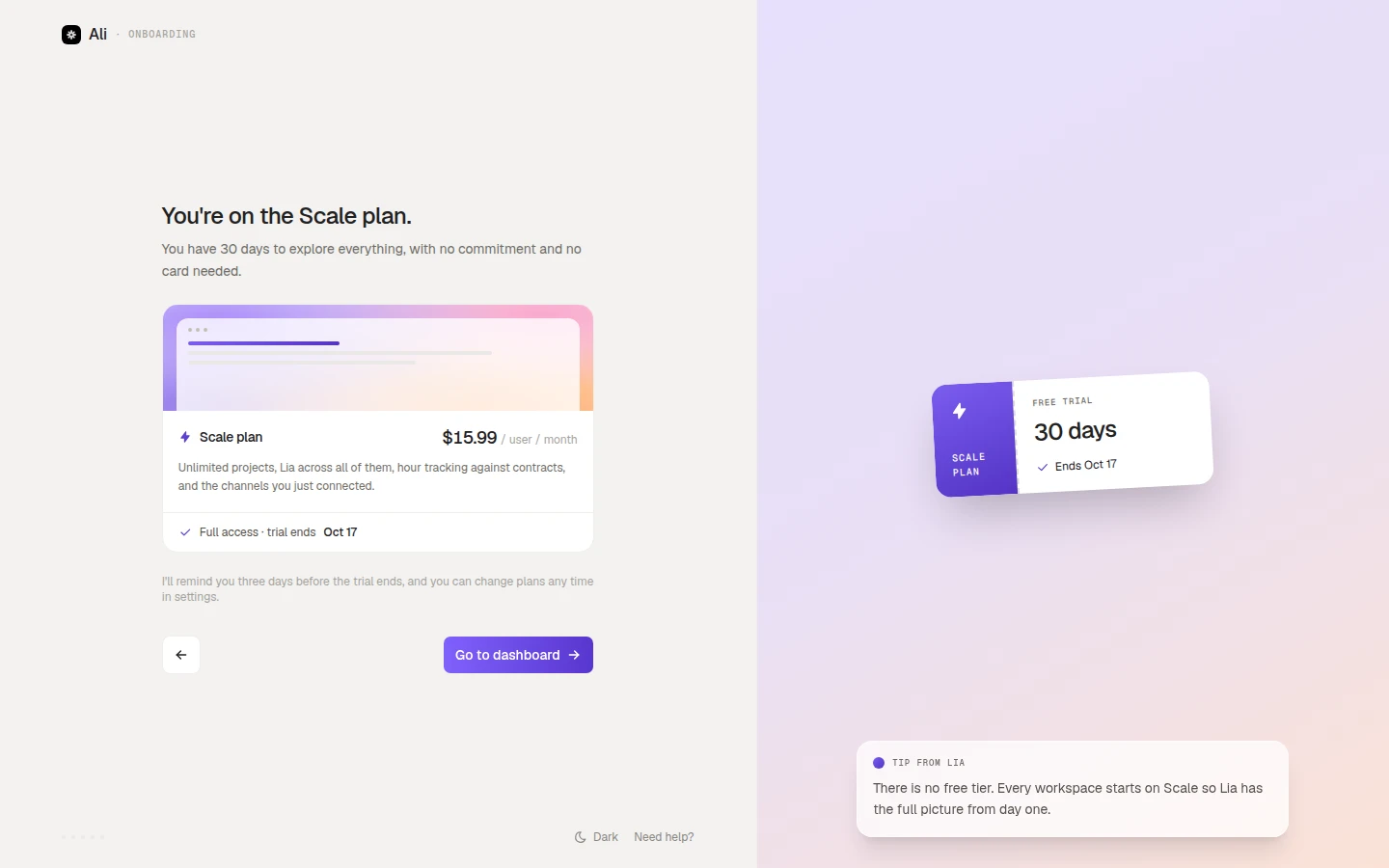
There is no free tier and no card at setup. Every workspace starts on Scale with full access for 30 days, Ali reminds you three days before the trial ends, and plans change in Settings → Company → Billing.
Go to dashboard finishes setup and opens the workspace.
Invite your team
A workspace with one person in it is a to-do list. Go to Settings → Company → Members & seats.
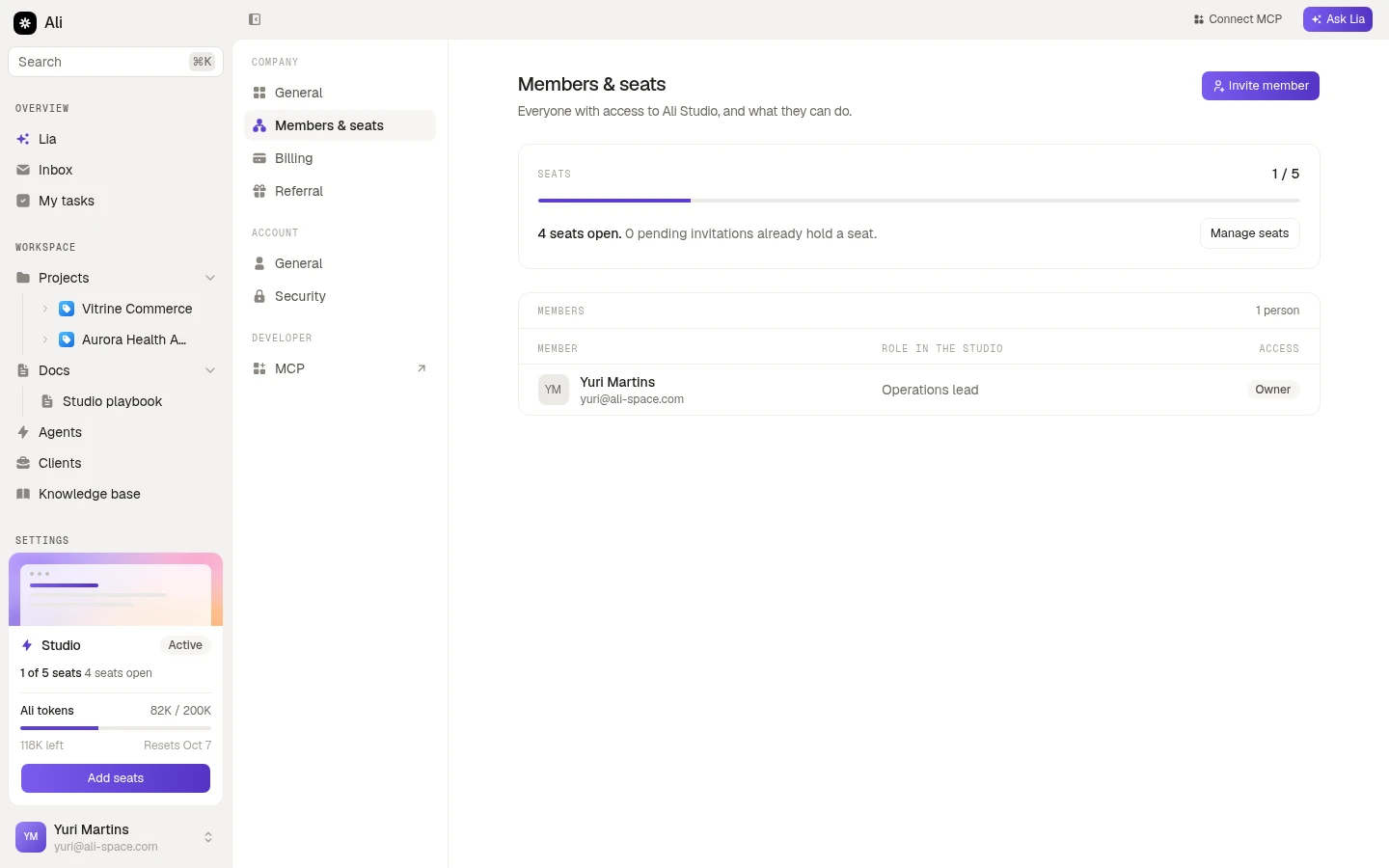
The card at the top is the seat count for your plan, and the list under it is everyone who has access. Invite member opens the form.
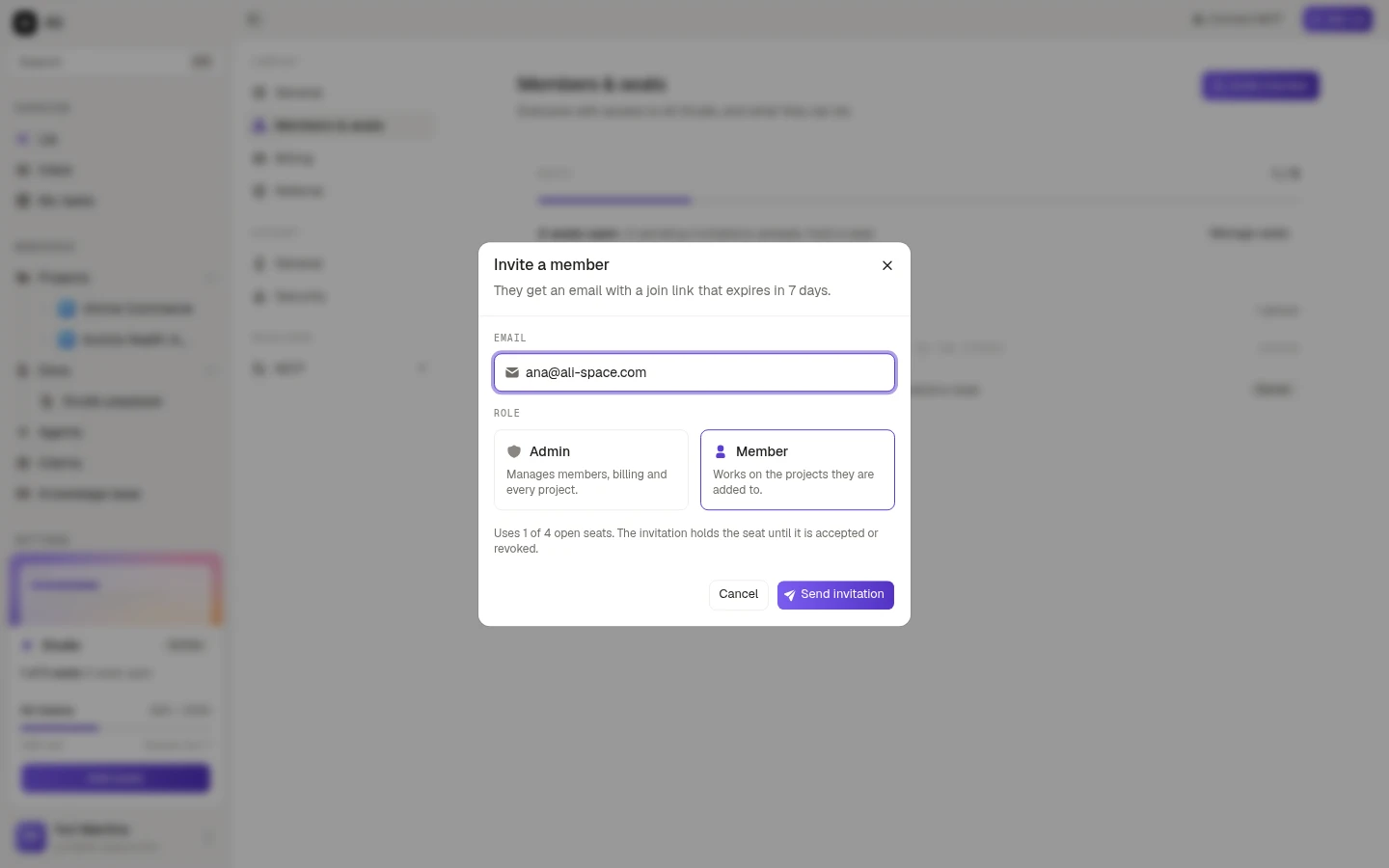
Type the email, pick a role, and send. The invitation is an email with a join link that expires in 7 days, and it holds a seat from the moment you send it until it is accepted or revoked. That is deliberate: it means the seat is there when your new hire finally opens their inbox.
The two roles you can invite are:
| Role | What it can do |
|---|---|
| Admin | Manages members, billing and every project |
| Member | Works on the projects they are added to |
The person who created the workspace is its Owner, which is Admin plus the things you only do once, like deleting the workspace.
Out of seats? Manage seats on the seats card adds more, and billing follows the new count.